
Mobile Component Guide
Overview
This guide walks through integrating Paze® Messages into native mobile applications using the Paze Messages API and mobile UI components. It covers message rendering, styling, dark mode support, HTML formatting, link handling, server integration, caching, and accessibility considerations.
Implementing Messages
The Paze message component displays promotional content returned by the Paze Messages API. In terms of implementation, the mobile message component is defined and rendered by the merchant, but the actual message (content and date range) is retrieved via the API.
If you haven't already, start with one of the available checkout flows:
Sequence
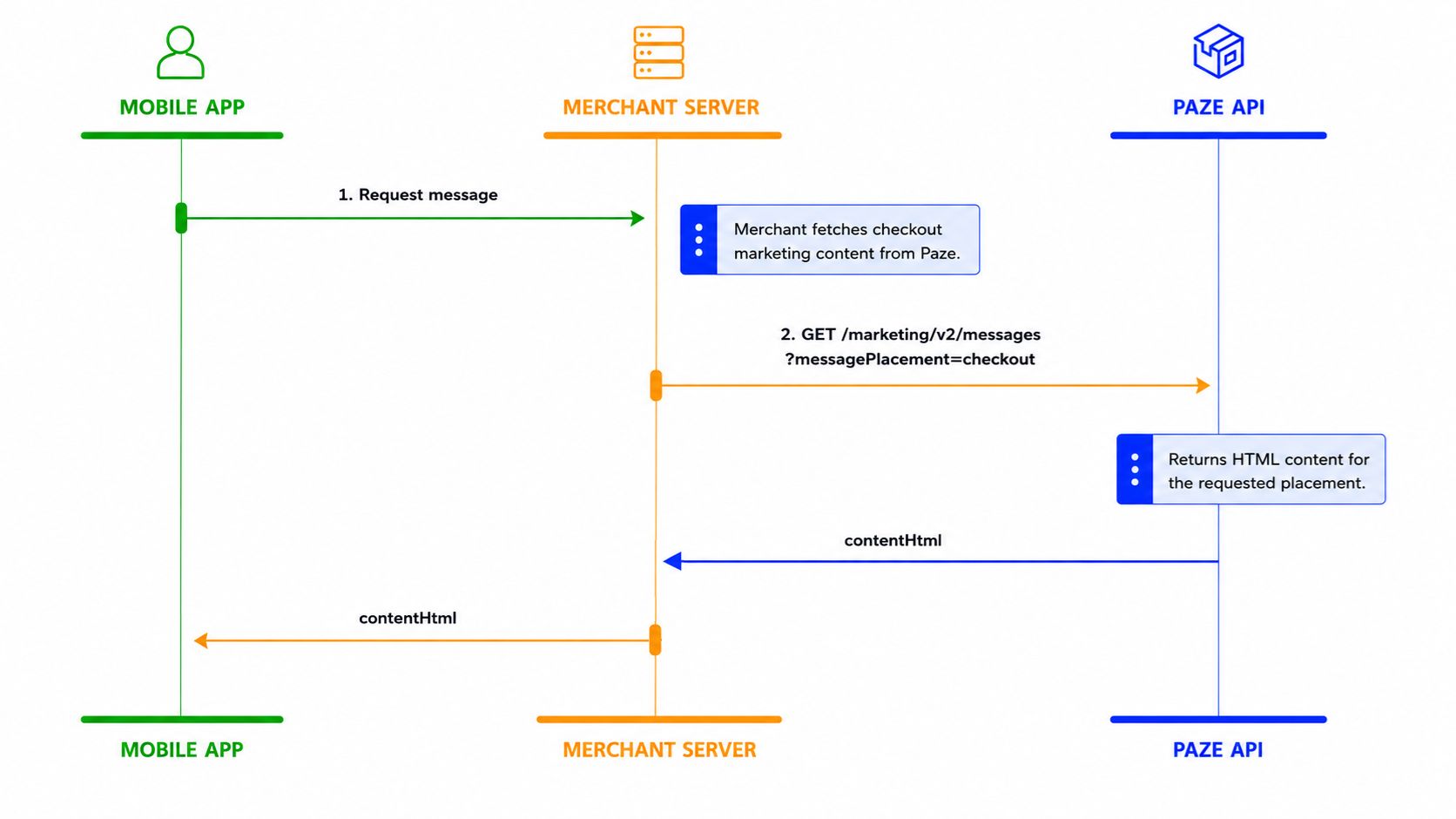
The basic sequence is followed directly from the selected checkout flow.
- Generate Client Assertion
- Get Access Token
- To display the message alongside the Paze payment option, first configure the message
- Fetch the message from the server
- Render the message
- Continue with the selected checkout flow
Mobile Platform
Select your Mobile platform for the Message integration
Add the Messaging component
PazeMessage(
    message = "Earn <b>5%</b> cash back with Paze®",
    style = PazeMessageStyle.FILLED,
    darkMode = true,
    onLinkClick = { url -> openInAppBrowser(url) }
)
<com.paze.merchant.paze.message.xml.PazeMessageView
android:id="@+id/pazeMessage"
android:layout_width="match_parent"
android:layout_height="wrap_content"
app:message="Earn 5% cash back with Paze®"
app:messageStyle="default_style" />
pazeMessage.setMessage(
html = messageHtml,
style = PazeMessageStyle.FILLED,
darkMode = true,
onLinkClick = { url -> openInAppBrowser(url) }
) Message Attributes
message is the HTML content from the Paze Messages API, contentHtml field.
The message attribute cannot be empty. The actual displayed message is returned from the Paze API as HTML and parsed by the PazeMessage component to retrieve the message. If the message attribute is empty when defined in PazeMessage, the message will not be displayed.
Example: message = "Save with Paze®"
PazeMessageStyle string required
PazeMessageStyle defines the appearance of the message. It defines font color, background, and border. Light mode vs dark mode will determine the colors for each.
Options:
DEFAULT( default value ) : Transparent background, no borderFILLED: Message has a colored background.OUTLINED: Message has a border.
Example: "style = PazeMessageStyle.DEFAULT"
darkMode defines the color scheme of the message. See the table below for the mapping of style to the theme.
Options:
null/nill( default value ) : Auto-detect from system configuration.true: Force dark mode colors(white text, white links, midnight black containers).false: Force light mode colors (black text, blue links, pale grey/white containers).
| Style | false (Light Mode) | true (Dark Mode) |
|---|---|---|
DEFAULT | Transparent bg, black text | Transparent bg, white text |
FILLED | #F4F7FF fill, black text | #151B33 fill, white text |
OUTLINED | White fill + #E0E0E0 border | #151B33 fill + #E0E0E0 border |
Example: "darkMode = true"
onLinkClick defines a function for how to handle opening a link inside the message body.
By default, links open in-context using a Custom Tab on Android
Example:
PazeMessage(
    message = "See <a href=\"https://www.paze.com/offers#tc">terms</a>",
    style = PazeMessageStyle.DEFAULT,
    onLinkClick = { url -> openInAppBrowser(url) }
)
pazeMessage.setMessage(
html = "See <a href=\"https://www.paze.com/terms\">terms</a>",
style = PazeMessageStyle.DEFAULT,
onLinkClick = { url -> openInAppBrowser(url) }
)On mobile, message-id and message-placement are server-side API parameters used when calling the Paze Messages API from your Merchant Server. They are not passed to the mobile components. The app only receives the resulting contentHtml string.
Logo Rendering (Mobile Only)
The mobile components do not support dynamic image fetching from HTML content. Instead, <img> tags in the message HTML are stripped and replaced with a native Paze logo rendered inline. The logo is tinted to match the current style (Paze Blue in light mode, white in dark mode).
No additional configuration is needed on the client. The components detect <img> tags and render the native logo automatically.
Supported HTML (Mobile Only)
The mobile components parse a subset of HTML tags:
| Tag | Purpose |
|---|---|
<b>, <strong> | Bold text |
<i>, <em> | Italic text |
<u> | Underlined text |
<sup>, <sub> | Superscript / subscript |
<a href="..."> | Tappable links |
<br> | Line breaks |
<img> | Stripped and replaced with native Paze logo (images are not fetched) |
Any tags not listed above are ignored by the mobile components.
Server Integration
On mobile, your Merchant Server calls the Paze Messages API and passes the contentHtml field to the app. The mobile app does not call the Messages API directly.
Refer to the Messages API to retrieve Paze messages.
Messages API Endpoints
| Environment | URL |
|---|---|
| Sandbox | https://b2b.wallet.uat.earlywarning.io/marketing/v2/messages |
| UAT | https://b2b.wallet.cat.earlywarning.io/marketing/v2/messages |
| Production | https://b2b.wallet.earlywarning.com/marketing/v2/messages |
Query Parameters
| Parameter | Description |
|---|---|
messagePlacement | Where the message appears: checkout, productPage, cartPage, or mobile variants (checkoutMobile, productPageMobile, cartPageMobile) |
profileId | Optional Paze profile ID for personalized messages |
Fetch from Server and Display
val messageHtml = merchantApi.getOfferMessage()

PazeMessage(message = messageHtml)
val messageHtml = merchantApi.getOfferMessage()
pazeMessage.setMessage(html = messageHtml)WHAT: Display promotional or informational Paze messages near the Paze checkout experience.
WHY: Helps increase awareness of Paze benefits, offers, and available payment options before checkout.
WHEN: Display wherever the Paze Button is rendered, including product detail, cart, checkout, and mobile experiences.
BEST PRACTICES: Always place the Paze Message near the Paze Button.
Caching (Mobile Only)
Your server fetches the message content, and you should cache the contentHtml string in memory for the session since offer messages change infrequently.
| Strategy | When to Fetch | Benefit |
|---|---|---|
| App launch | On startup or first scene activation | Offer is ready instantly, zero UI delay |
| Page load | When fetching product or cart data | Pairs naturally with existing network calls |
| Cart/checkout init | When the user enters cart or checkout | Offer is ready before render |
Avoid fetching only when the message component is about to display. The asynchronous API call causes the message area to pop in after load, shifting surrounding UI and creating visible layout jank.
Accessibility
The mobile components provide built-in accessibility support. When using the default dark mode setting (null/nil, which follows the system theme), the components use accessible color combinations. If you force dark mode with an explicit darkMode value, color accessibility is not guaranteed.
| Feature | Detail |
|---|---|
| Text | Readable by TalkBack as a single semantic node |
| Logo | Decorative and excluded from TalkBack announcements |
| Links | Focusable and announced with their link text |
| Underlines | All links underlined for non-color-dependent identification |
Add the Messaging component
PazeMessage.View(
    html: "Earn <b>5%</b> cash back with Paze®",
    style: .standard,
    darkMode: true,
    onLinkTap: { url in
        openInAppBrowser(url)
    }
)
let pazeMessage = PazeMessage()
pazeMessage.setMessage(
html: "Earn <b>5%</b> cash back with Paze®",
style: .standard,
darkMode: true,
onLinkTap: { url in
UIApplication.shared.open(url)
}
)
stackView.addArrangedSubview(pazeMessage) Message Attributes
html is used with SwiftUI and is the content from the Paze Messages API, contentHtml field.
The message attribute cannot be empty. The actual displayed message is returned from the Paze API as HTML and parsed by the PazeMessage component to retrieve the message. If the message attribute is empty when defined in PazeMessage, the message will not be displayed.
The UIKit PazeMessage automatically sets isHidden = true when the HTML string is nil or empty, so no manual visibility management is needed.
Example: html: "Earn 5% cash back with Paze®",
PazeMessageStyle string required
PazeMessageStyle defines the appearance of the message. It defines font color, background, and border. Light mode vs dark mode will determine the colors for each.
Options:
.standard( default value ) : Transparent background, no border.filled: Message has a colored background..outlined: Message has a border.
Container dimensions for .filled and .outlined styles: 4pt corner radius, 8pt padding. The .outlined style adds a 1pt border in #E0E0E0. |
Example: "style: .filled"
darkMode defines the color scheme of the message. See the table below for the mapping of style to the theme.
Options:
null/nill( default value ) : Auto-detect from system configuration.true: Force dark mode colors(white text, white links, midnight black containers).false: Force light mode colors (black text, blue links, pale grey/white containers).
| Style | false (Light Mode) | true (Dark Mode) |
|---|---|---|
DEFAULT | Transparent bg, black text | Transparent bg, white text |
FILLED | #F4F7FF fill, black text | #151B33 fill, white text |
OUTLINED | White fill + #E0E0E0 border | #151B33 fill + #E0E0E0 border |
Example: "darkMode: true"
onLinkTap defines a function for how to handle opening a link inside the message body. By default, links open in-context using a Custom Tab on SFSafariViewController on iOS.
Example:
 PazeMessage.View(
     html: "See <a href=\"https://www.paze.com/offers#tc\">terms</a>",
     style: .standard,
     onLinkTap: { url in
         openInAppBrowser(url)
     }
 )
let pazeMessage = PazeMessage()
pazeMessage.setMessage(
html: "See <a href=\"https://www.paze.com/terms\">terms</a>",
style: .standard,
onLinkTap: { url in
UIApplication.shared.open(url)
}
)On mobile, message-id and message-placement are server-side API parameters used when calling the Paze Messages API from your Merchant Server. They are not passed to the mobile components. The app only receives the resulting contentHtml string.
Logo Rendering (Mobile Only)
The mobile components do not support dynamic image fetching from HTML content. Instead, <img> tags in the message HTML are stripped and replaced with a native Paze logo rendered inline. The logo is tinted to match the current style (Paze Blue in light mode, white in dark mode).
No additional configuration is needed on the client. The components detect <img> tags and render the native logo automatically.
Supported HTML (Mobile Only)
The mobile components parse a subset of HTML tags:
| Tag | Purpose |
|---|---|
<b>, <strong> | Bold text |
<i>, <em> | Italic text |
<u> | Underlined text |
<sup>, <sub> | Superscript / subscript |
<a href="..."> | Tappable links |
<br> | Line breaks |
<img> | Stripped and replaced with native Paze logo (images are not fetched) |
Any tags not listed above are ignored by the mobile components.
Server Integration
On mobile, your Merchant Server calls the Paze Messages API and passes the contentHtml field to the app. The mobile app does not call the Messages API directly.
Refer to the Messages API to retrieve Paze messages.
Messages API Endpoints
| Environment | URL |
|---|---|
| Sandbox | https://b2b.wallet.uat.earlywarning.io/marketing/v2/messages |
| UAT | https://b2b.wallet.cat.earlywarning.io/marketing/v2/messages |
| Production | https://b2b.wallet.earlywarning.com/marketing/v2/messages |
Query Parameters
| Parameter | Description |
|---|---|
messagePlacement | Where the message appears: checkout, productPage, cartPage, or mobile variants (checkoutMobile, productPageMobile, cartPageMobile) |
profileId | Optional Paze profile ID for personalized messages |
Fetch from Server and Display
let messageHtml = try await merchantAPI.getOfferMessage()

PazeMessage.View(message: messageHtml)
let messageHtml = try await merchantAPI.getOfferMessage()
let pazeMessage = PazeMessage()
pazeMessage.setMessage(html: messageHtml)WHAT: Display promotional or informational Paze messages near the Paze checkout experience.
WHY: Helps increase awareness of Paze benefits, offers, and available payment options before checkout.
WHEN: Display wherever the Paze Button is rendered, including product detail, cart, checkout, and mobile experiences.
BEST PRACTICES: Always place the Paze Message near the Paze Button.
Caching (Mobile Only)
Your server fetches the message content, and you should cache the contentHtml string in memory for the session since offer messages change infrequently.
| Strategy | When to Fetch | Benefit |
|---|---|---|
| App launch | On startup or first scene activation | Offer is ready instantly, zero UI delay |
| Page load | When fetching product or cart data | Pairs naturally with existing network calls |
| Cart/checkout init | When the user enters cart or checkout | Offer is ready before render |
Avoid fetching only when the message component is about to display. The asynchronous API call causes the message area to pop in after load, shifting surrounding UI and creating visible layout jank.
Accessibility
The mobile components provide built-in accessibility support. When using the default dark mode setting (null/nil, which follows the system theme), the components use accessible color combinations. If you force dark mode with an explicit darkMode value, color accessibility is not guaranteed.
| Feature | Detail |
|---|---|
| Text | Readable by VoiceOver as accessible text |
| Logo | Decorative and hidden from VoiceOver |
| Links | Tappable and announced by VoiceOver with their link text |
| Underlines | All links underlined for non-color-dependent identification |
Updated about 2 months ago