
Mobile Integration
Overview
The Paze® mobile components, available for Android and iOS, provide native pre-built button, message UI, and the checkout flow that launches the Paze wallet experience. The components are distributed as source files that you add directly to your project. Contact your Paze Implementation Manager to receive the component package.
Requirements
| Requirement | Value |
|---|---|
| Min SDK | API 24 (Android 7.0) |
| Target SDK | API 36 |
| Language | Kotlin 2.0+ |
| UI Frameworks | Jetpack Compose, XML Views |
| Required Dependency | androidx.browser:browser:1.9.0 |
Add the browser dependency to your module's build.gradle.kts:
dependencies {
    implementation("androidx.browser:browser:1.9.0")
}
The androidx.browser library provides Custom Tabs, which is required for launching the Paze checkout experience.
| Requirement | Value |
|---|---|
| Min OS | iOS 15.6 |
| Xcode | 16+ |
| Language | Swift 5.6 |
| UI Frameworks | SwiftUI, UIKit |
| External Dependencies | None |
The iOS components use AuthenticationServices (included in iOS) for the checkout flow. No third-party dependencies are required.
What's Included
The component package includes pre-built UI and utilities. Both platforms provide equivalent functionality:
| Component | Purpose | Details |
|---|---|---|
| Paze Button | Branded checkout button | Configurable color, shape, label, and theme. See Integrate Button. |
| Paze Message | Promotional offer display | Renders HTML content from the Messages API with automatic styling. See Integrate Messages. |
| Secure Browser | Opens the Paze wallet | Custom Tabs (Android) / ASWebAuthenticationSession (iOS) |
| Callback Parser | Handles checkout result | Parses the redirect URL and returns structured result data. Optional helper classes. |
| Brand Style Files | Brand colors and dimensions | Paze Blue, spacing, and corner radii (do not modify) |
| Sample App | Reference implementation | Demonstrates end-to-end Express Pay and Review & Pay flows. Contact your Paze Implementation Manager to receive access. |
The component package also includes a README with instructions for adding the source files to your project and configuring dependencies. Follow the README to complete your initial project setup, then return to these guides for integration details.
Integration Steps
A typical mobile integration follows these steps:
| Step | What to Do | Reference |
|---|---|---|
| Drop in the button component on your checkout, cart, or product screen | Integrate Button |
| Register your URL scheme in AndroidManifest.xml or Info.plist | Express Pay Flow, Callback scheme configuration section |
| Create session on button tap, launch checkout, handle callback, call complete | Express Pay Flowor Review & Pay Flow |
| Fetch messages from your server, pass HTML to the message component | Integrate Messages |
Choose a Checkout Flow
| Flow | Intent Value | Best For | API Calls After Callback |
|---|---|---|---|
| Express Pay | EXPRESS_CHECKOUT | Fixed pricing, logged-in users, digital goods | /complete only |
| Review & Pay | REVIEW_AND_PAY | Guest checkout, variable shipping/tax, order confirmation needed | /review then /complete |
See Express Pay Flow and Review & Pay Flow for full integration guides.
Contact your Paze Implementation Manager for example implementations available on Codepen.io.
Architecture
Mobile integrations use a server-to-server pattern. The mobile app never calls the Paze API directly. Your Merchant Server handles OAuth, session management, and payload decryption.
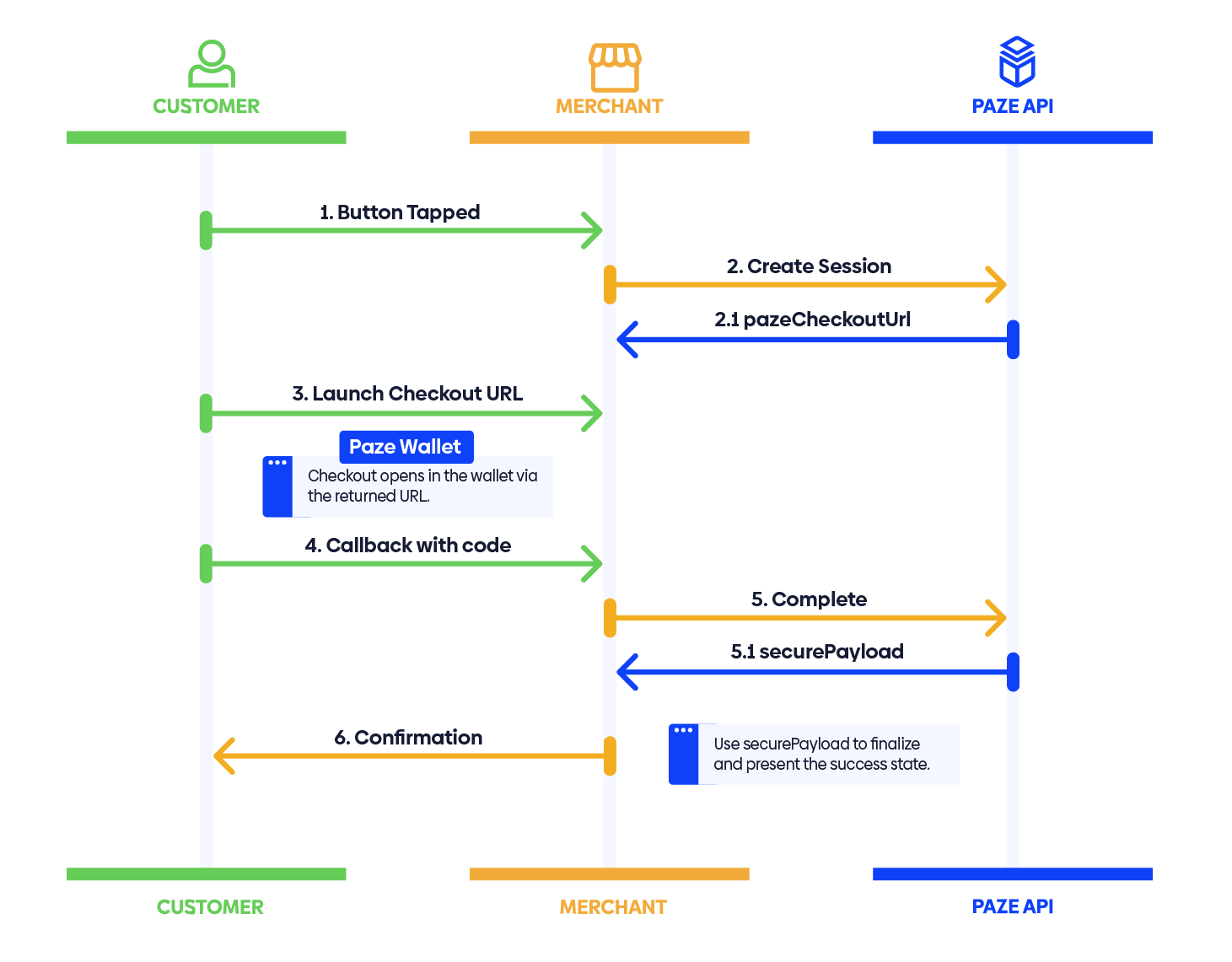
Security
The JWE/JWS payload signature and encryption process is identical for web and mobile integrations. All cryptographic operations (signature validation, JWE decryption) happen server-side on the Merchant Server. The mobile app never handles private keys or decrypts payloads directly.
The only mobile-specific security consideration is the checkout launch mechanism:
Custom Tabs are required for launching the Paze checkout. WebView is not permitted because it lacks the session isolation and cookie handling needed for secure authentication. Custom Tabs run in a separate browser process, providing full TLS/mTLS support and RFC 8252 compliance.
ASWebAuthenticationSession is required for launching the Paze checkout. WKWebView and SFSafariViewController are not permitted for the checkout flow. ASWebAuthenticationSession provides system-managed authentication with automatic callback interception and session isolation.
Environments
| Environment | Auth URL | API Base URL |
|---|---|---|
| CAT | https://auth.wallet.cat.earlywarning.io/token | https://mobile.wallet.cat.earlywarning.io |
| UAT | https://auth.wallet.uat.earlywarning.io/token | https://mobile.wallet.uat.earlywarning.io |
| Production | https://auth.wallet.earlywarning.com/token | https://api.paze.com |
To test your integration:
| Step | Action |
|---|---|
| 1 | Obtain sandbox credentials from your Paze Implementation Manager |
| 2 | Configure your Merchant Server with sandbox endpoint URLs |
| 3 | Run the sample app against sandbox to verify the end-to-end flow |
| 4 | Test the flow applicable to the integration (e.g. - Express Pay or Review & Pay). Test both if the integration uses both flows |
| 5 | Verify callback URL scheme handling on each platform |
| 6 | Test error scenarios (cancelled checkout, expired session, network failure) |
Additional Resources
| Topic | Page |
|---|---|
| Button placement and design guidelines | Button Guidelines |
| Button component API and configuration | Integrate Button |
| Express Pay integration guide | Express Pay Flow |
| Review & Pay integration guide | Review & Pay Flow |
| Message component API and configuration | Integrate Messages |
Updated 21 days ago