
Integrate in Mobile App
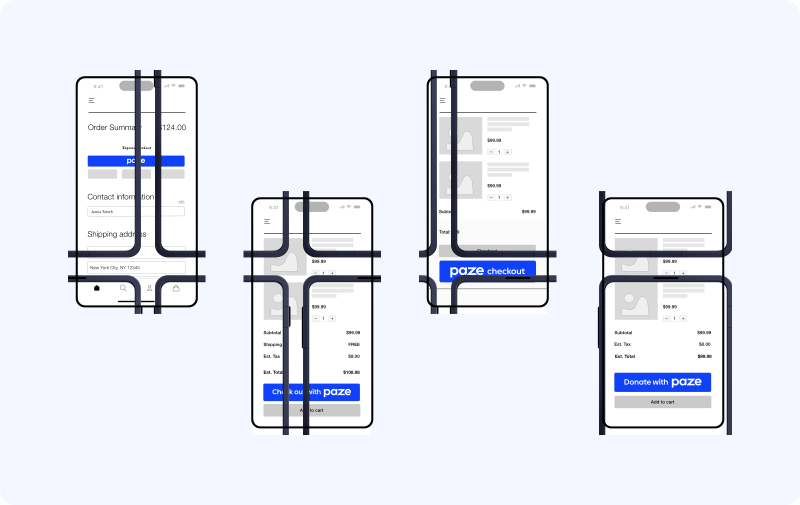
The Paze Button
Add the Paze® button to your app. The button is a pre-built component that launches the Paze checkout experience, providing a consistent, on-brand entry point that meets Paze design requirements. Display it on any screen where users can initiate payment, such as product detail, cart, or checkout.
This guide assumes the native mobile component dependencies are already added to your project. See the README included in the component package for initial setup instructions. Talk to your Paze implementation manager to get the native mobile component source files.
The button supports a fixed set of customization options to maintain Paze branding:
Mobile Platform
Select your Mobile platform for the button integration
Add the Button
PazeButton(
onClick = { viewModel.initiatePayment() },
modifier = Modifier.fillMaxWidth()
)
<com.paze.merchant.paze.button.xml.PazeButtonView
android:id="@+id/pazeButton"
android:layout_width="match_parent"
android:layout_height="wrap_content" />
val pazeButton = findViewById<PazeButtonView>(R.id.pazeButton)
pazeButton.setOnClickListener { viewModel.initiatePayment() }All implementations render the same button with identical visual output. Choose based on your platform and UI framework.
Attributes
Size
| Property | Android |
|---|---|
| Min width | 200dp |
| Min height | 48dp |
| Max height | 60dp |
Android uses 48dp to meet platform touch target guidelines.
Color
Five color options control the button's background and content colors. Color and shape are independent, so any color works with any shape.
| Value | Background | Content |
|---|---|---|
| Paze Blue | #0F42F8 | White |
| White | White | Paze Blue |
| White with Outline | White + #151B33 border | Paze Blue |
| Midnight Black | #151B33 | White |
| Auto | Paze Blue (light) / White (dark) | Auto |
Mobile defaults to AUTO, which resolves to Paze Blue in light mode and White in dark mode for accessible contrast without manual configuration.
PazeButton(
    onClick = { },
    color = PazeButtonColor.PAZE_BLUE,
    shape = PazeButtonShape.PILL
)
<PazeButtonView
android:layout_width="match_parent"
android:layout_height="wrap_content"
app:pazeColor="paze_blue"
app:pazeShape="pill" />
// Set color and shape programmatically
pazeButton.applyColorAndShape(PazeButtonColor.PAZE_BLUE, PazeButtonShape.PILL)Shape
Three corner radius options are available. Shape is independent of color.
| Value | Corner Radius |
|---|---|
| Default | 4dp / 4pt |
| Rectangle | 0 |
| Pill | 50% (fully rounded) |
PazeButton(
    onClick = { },
    shape = PazeButtonShape.PILL
)
<PazeButtonView
android:layout_width="match_parent"
android:layout_height="wrap_content"
app:pazeShape="pill" />
// Or set programmatically
pazeButton.applyShape(PazeButtonShape.PILL)Labels
Four label options are available on mobile. Each label renders as a single tinted image asset.
| Value | Android | iOS | Renders As |
|---|---|---|---|
| Check out with | CHECKOUT_WITH | .checkoutWith | "Check out with [Paze logo]" |
| Paze checkout | PAZE_CHECKOUT | .pazeCheckout | "[Paze logo] checkout" |
| Donate with | DONATE_WITH | .donateWith | "Donate with [Paze logo]" |
| Logo only | CHECKOUT | .checkout | [Paze logo] |
Never use "Pay with Paze." The word "pay" cannot appear adjacent to "Paze."
Theme Detection
Mobile button components determine light or dark mode to resolve the AUTO color. By default, the button reads the device’s system theme to ensure appropriate contrast and accessibility.
If your app uses its own Light/Dark/System toggle or displays the button on custom backgrounds, you can override the theme detection so the button matches your app’s theme rather than the system setting.
If you explicitly choose a specific button color instead of using AUTO, you are responsible for ensuring the selected color remains accessible and meets contrast requirements in your UI.
Match Other Wallet Buttons
Give Paze equal size and visual weight to other digital wallet buttons on the same screen. Paze brand guidelines require parity with other digital wallets. Use identical width, height, and spacing for all wallet buttons on checkout screens.
Accessibility
The mobile button components include built-in accessibility support.
| Feature | Detail |
|---|---|
| Role | Semantic Role.Button with content description from selected label (e.g., "Check out with Paze") |
| Touch target | 48dp minimum meets Material Design guidelines |
| Logo | Decorative and excluded from TalkBack announcements |
Add the Button
PazeButton.View(label: .checkoutWith, color: .auto, shape: .default) {
    viewModel.initiatePayment()
}
.frame(maxWidth: .infinity)
let pazeButton = PazeButton(label: .checkoutWith, color: .auto, shape: .default) {
viewModel.initiatePayment()
}
pazeButton.translatesAutoresizingMaskIntoConstraints = false
view.addSubview(pazeButton)
NSLayoutConstraint.activate([
pazeButton.leadingAnchor.constraint(equalTo: view.leadingAnchor, constant: 16),
pazeButton.trailingAnchor.constraint(equalTo: view.trailingAnchor, constant: -16)
])All implementations render the same button with identical visual output. Choose based on your platform and UI framework.
Attributes
| Attribute | Type | Default | Description | |
|---|---|---|---|---|
label | PazeButtonLabel | .checkoutWith | Button label text. See Labels. | |
color | PazeButtonColor | .auto | Background color variant. See Color. | |
shape | PazeButtonShape | .default | Corner radius style. See Shape. | |
style (UIKit) | PazeButtonStyle | default | Composite of color and shape for UIKit. Set via pazeButton.style = PazeButtonStyle(color:, shape:). |
Size
| Property | iOS |
|---|---|
| Min width | 200pt |
| Min height | 48pt |
| Max height | 60pt |
IoS uses 48pt to meet platform touch target guidelines.
Color
Five color options control the button's background and content colors. Color and shape are independent, so any color works with any shape.
| Value | Background | Content |
|---|---|---|
| Paze Blue | #0F42F8 | White |
| White | White | Paze Blue |
| White with Outline | White + #151B33 border | Paze Blue |
| Midnight Black | #151B33 | White |
| Auto | Paze Blue (light) / White (dark) | Auto |
Mobile defaults to AUTO, which resolves to Paze Blue in light mode and White in dark mode for accessible contrast without manual configuration.
    PazeButton.View(
        color: .pazeBlue,
        shape: .pill
    ) {
        launchPazeCheckout()
    }
let pazeButton = PazeButton()
pazeButton.style = PazeButtonStyle(color: .pazeBlue, shape: .pill)Shape
Three corner radius options are available. Shape is independent of color.
| Value | Corner Radius |
|---|---|
| Default | 4dp / 4pt |
| Rectangle | 0 |
| Pill | 50% (fully rounded) |
    PazeButton.View(shape: .pill) {
        launchPazeCheckout()
    }
let pazeButton = PazeButton()
pazeButton.style = PazeButtonStyle(shape: .pill)Labels
Four label options are available on mobile. Each label renders as a single tinted image asset.
| Value | Android | iOS | Renders As |
|---|---|---|---|
| Check out with | CHECKOUT_WITH | .checkoutWith | "Check out with [Paze logo]" |
| Paze checkout | PAZE_CHECKOUT | .pazeCheckout | "[Paze logo] checkout" |
| Donate with | DONATE_WITH | .donateWith | "Donate with [Paze logo]" |
| Logo only | CHECKOUT | .checkout | [Paze logo] |
Never use "Pay with Paze." The word "pay" cannot appear adjacent to "Paze."
Theme Detection
Mobile button components determine light or dark mode to resolve the AUTO color. By default, the button reads the device’s system theme to ensure appropriate contrast and accessibility.
If your app uses its own Light/Dark/System toggle or displays the button on custom backgrounds, you can override the theme detection so the button matches your app’s theme rather than the system setting.
If you explicitly choose a specific button color instead of using AUTO, you are responsible for ensuring the selected color remains accessible and meets contrast requirements in your UI.
Match Other Wallet Buttons
Give Paze equal size and visual weight to other digital wallet buttons on the same screen. Paze brand guidelines require parity with other digital wallets. Use identical width, height, and spacing for all wallet buttons on checkout screens.
Accessibility
The mobile button components include built-in accessibility support.
| Feature | Detail |
|---|---|
| Trait | .button accessibility trait with label from selected label (e.g., "Check out with Paze") |
| Touch target | 48pt minimum meets Apple HIG (44pt minimum) |
| Logo | Decorative and hidden from VoiceOver |
Resources
Updated about 2 months ago