
Integrate in Mobile App
Overview
This guide walks through integrating Paze® Button with Review and Pay into your checkout experience. Review and Pay is a checkout experience where customers enter the Paze Wallet to select their payment method and are returned to the merchant site to review full order details and complete the payment.
At a high level, the sequence involves:
- Getting API Access
- Integrating the Paze Button
- Creating a Paze checkout session on button click
- Sample requests and responses
- Completing the transaction
Sequence Diagram
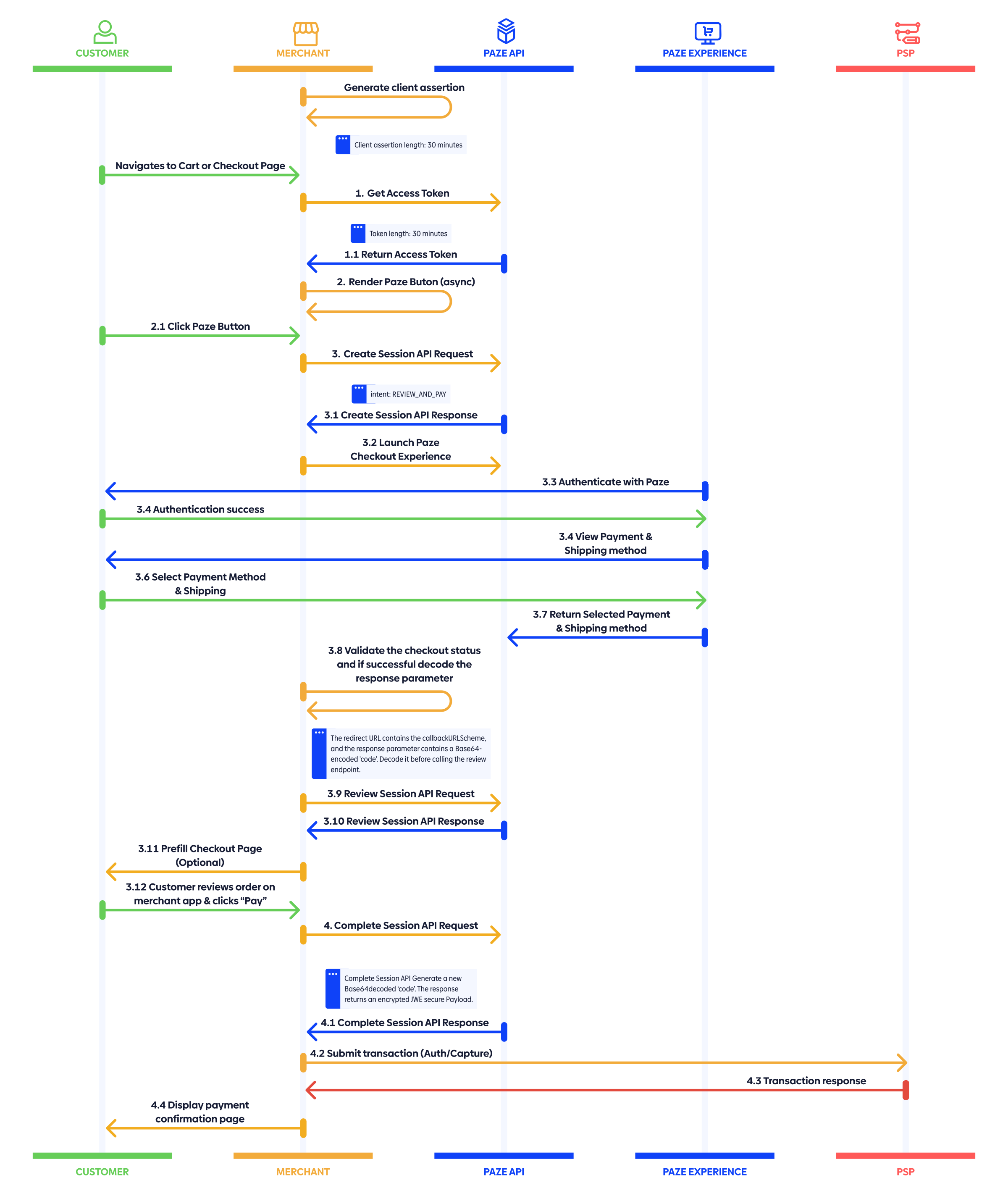
The following sequence diagram illustrates how the merchant site, Paze API, and Paze Experience interact during this process. It’s meant as a quick reference to understand the end-to-end flow before a deep dive into the sequence diagram and detailed integration steps.
Integration Steps
There are six basic steps to integrate the Button and Review and Pay flow from the Paze API with your application:
- Generate Client Assertion
- Get Access Token
- Render Button
- Create Checkout Session
- Review Checkout Session
- Complete Checkout Session
Each step includes what’s happening, why it matters, when to implement, and notes on best practices.
1. Generate Client Assertion
When authenticating with the private_key_jwt method, your application must generate a JWT client assertion signed with your registered private key using the RS256 algorithm. This JWT is then passed as the value of the client assertion parameter in your token request. The JWT header must include the algorithm (alg) set to RS256, the type (typ) set to JWT, and a key ID (kid) corresponding to your public key.
The JWT payload must include the following:
- iss: your client ID
- sub: your client ID (same as iss)
- aud: the token endpoint URL
- exp: the expiration time in UNIX
- iat: the issued-at timestamp
- jti: a unique identifier for the JWT
WHAT: Create an RS256-signed JWT client assertion with claims iss, sub, aud, exp, iat, nbf, jti and header kid.
WHY: You must generate a client assertion to retrieve your access token.
WHEN: Create the client assertion before making a call to the token URL.
BEST PRACTICES: Never transmit private keys over the network.
2. Get Access Token
After generating your client assertion, make a call to generate your access token. Access tokens are single use. Generate a new token for each checkout attempt. Do not cache or reuse tokens, even if a previous transaction failed. Tokens expire after 30 minutes if unused.
Sample Request
curl --location 'https://auth.wallet.cat.earlywarning.io/token' \
  --header 'Content-Type: application/x-www-form-urlencoded' \
  --data-urlencode 'grant_type=client_credentials' \
  --data-urlencode 'client_assertion=<CLIENT_ASSERTION_FROM_STEP_1>' \
  --data-urlencode 'client_assertion_type=urn:ietf:params:oauth:client-assertion-type:jwt-bearer'
Sample Response
{
  "access_token": "eyJraWQiOi...",
  "expires_in": "1800",
  "token_type": "bearer"
}
WHAT: Make a call to the token generation endpoint by passing the valid client assertion RS256-signed JWT obtained in the previous step.
WHY: You must generate an access token to access the Paze services. The access token lasts 30 minutes, and in the event of expiration, generate a new token. Paze does not support refresh tokens.
WHEN: Obtain the access token after generating the client assertion.
BEST PRACTICE: Ensure the aud claim matches the exact token URL. If the token is expired, re-generate the assertion and re-request the token, RS256-signed JWT
Mobile Platform
Select your Mobile platform for the button integration
3. Render button: Display the Paze Button adhering to brand guidelines
Render the Paze button on your checkout screen using the provided native mobile component. Display it alongside other wallet payment options, matching their visual prominence.
// 1. Initialize the delegate in your Activity
private val pazeCheckoutDelegate = PazeCheckoutDelegate(
    caller = this,
    callbackScheme = "com.yourapp",
)

// 2. Launch checkout (e.g., from a button click)
PazeButton(
    onClick = {
        pazeCheckoutDelegate.launchPaymentFlow(context, pazeCheckoutUrl)
    },
    modifier = Modifier.fillMaxWidth()
)
<com.paze.merchant.paze.button.xml.PazeButtonView
android:id="@+id/pazeButton"
android:layout_width="match_parent"
android:layout_height="wrap_content" />
val pazeButton = findViewById<PazeButtonView>(R.id.pazeButton)
pazeButton.setOnClickListener { viewModel.initiatePayment() }See Integrate Button for color, shape, label, and theme options, and Button Guidelines for placement requirements.
WHAT: Render the branded Paze button on your checkout screen using the SDK-provided component.
WHY: The button provides a customer-driven entry point into the Paze experience.
WHEN: Display whenever surfacing payment options in checkout experiences.
BEST PRACTICE: Use the provided component without manual restyling. Customize only through documented attributes (color, shape, label). See the Integrate Button Guide for approved variants.
Note: For approved variants, consult the Paze User Interface standards.
4. Create Checkout Session
The checkout session create endpoint, v1/checkout/sessions/create, enables merchants to create a checkout session within a native mobile experience. This endpoint returns a URL that merchants can use to launch the Paze experience in a Secured WebView. Call this endpoint when a customer clicks the Paze button.
Sample Request
curl --location 'https://mobile-east.wallet.cat.earlywarning.io/v1/checkout/sessions/create' \
  --header 'Content-Type: application/json' \
  --header 'Authorization: Bearer eyJraWQiOi...' \
  --data-raw '{
    "clientContext": "create-mobile-session-req",
    "data": {
      "client": {
        "id": "YOUR_CLIENT_ID",
        "name": "YOUR_MERCHANT_DISPLAY_NAME",
        "profileId": "YOUR_PROFILE_ID"
      },
      "sessionId": "14eb0b01-a6c0-40a0-8816-aecfa99d5954",
      "phoneNumber": "[email protected]",
      "emailAddress": "CUSTOMER_MOBILE_NUMBER",
      "callbackURLScheme": "<YOUR_APP_SCHEME>",
      "actionCode": "START_FLOW",
      "intent": "REVIEW_AND_PAY",
      "transactionValue": {
        "transactionCurrency": "USD",
        "transactionAmount": "10"
      },
      "shippingPreference": "ALL",
      "billingPreference": "ALL"
    }
  }'
Sample Response
{
  "data": {
    "pazeCheckoutUrl": "https://checkout.wallet.cat.earlywarning.io/web/mobile/checkout?param=eyJwIjoiZXlKbGJtTWlPaUpCTWpVMlIwTk5JaXdpWlhod0lqb3hOelkwT0RFNU9Ua3pMQ0pwWVhRaU9qRTNOalE0TVRrMU1UTXNJbUZzWnlJNklsSlRRUzFQUVVWUUxUSTFOaUlzSW10cFpDSTZJakJFTmtOQk5UazJJbjAuY1B4M3hHUzZDajhKaVRJTmlQMXJMeHJZTDk3NG91Y0Rrelp4MkltVjFmaHB4cThSTjJHZHdSZEdmb2xNcjRxSmNXOW5qRk5DeVk0YjRZdTE4MmVjWHV3YmlsZXhLekdiS2tFTUx0Q1l6NThLYTk0TGRRUXVPWnZaeFdNSXlFdlNKTWhLOVlPaVBkS0M0dXQ3UkY3TjB4UFdzOElOV3lSQ3hSd3M5YktkSkNhQlRvNzJvY1h2clpaVjhmY1VfNDJZMkkyZTFhaTdHUWQteDh5WTRiSzlUckl6TzgxTkNFRXhLeG05UWFhOFVLbUFoNURQa1J0a2pBMHNuLS1Db1dqZEhtQlpGR1R5S3BTMUl1VzNjVDFLVFdCM3VaX054UTlaSGo1SWliRnVtSC1pNnhlZGZrSktrUkxjLWdURFRpdGl4VkNiLThNdDJmeHVPLTNMeC1GWEdBLjhWVUNDNVdxYnlIMzR6dDIuNnViRUxNZ3NWcEdrVTA2OFhUYWhvc05YelFkZG5IZjhpbVJTZTU5aHpSZXo5b1h3R214MVQ5cWtGb3lzUVJSVUZ6ZWZMbjdnTnRadWptVER1MndJWDVqTWVlZktiaDktVHdCQW5pc2lOamZkTENCTkFSWkR0aG1QTWRENE1lQ1NtdHRjSTNwUWU1bld1X3QwMUs0d1BINE84RkI0VzB4a0FWZ3d2MVZjakI3MlNXaWlnendPY1BSNFkxMUQ2bTY4akNaUkFsYi1yU0NfaDBNOTN3Y2Y1NWpaeXdzdWlKZ3Z5Tmp6am4tMFhDQktYdElKRm9DMjZXa2pMR0ptZTczQmN3UndBSkJlZzBSVHcwXzVLa2xodnRWMHctOGpYa09SSktfd3k5NXNtQ01FYmRBVnNUZHM4X1FpS0h4R3ZlWmY0Z0ZBc2ZIRXR5WEtmVWFFOVNRQmJid01hQVl1cDdVUGlUaDRuMXM4azJ5S2lSYzB6ZkNtUm84azlUaVF4QVhabWFpOVdQNnZ6OVdwUkdYSm05ang4NHU2cmpuTnpHSGU5a1RnMVQ3ODVwenVEQjE1R1RZWXZWQTRJRXNSWjl5TkRJQmoteHZFRzZ3MzJESFdwWUx3eXdvV3dfRGhQLTZLN1MtcDRlZ19TM1gwNThkd29CZkhlLVdnc1kybFVpbzQ1TzhNX183eHZDMG44ZmNvRFVQNE1VaHpJT24tLlY2ZEdKM3hPdzQyb3IwZjF2LTRwRkEifQ"
  },
  "clientContext": "create-mobile-session-req",
  "ewSID": "3cc18f10-ceb7-4162-bd2e-e2334bccef31",
  "timestampISO8601": "2025-12-04T03:38:33Z"
}
WHAT: Make a call to checkout sessions create to start your checkout session when the customer clicks the Paze button.
WHY: You must generate the Paze checkout URL to launch the Paze checkout experience.
WHEN: Embed the Paze checkout URL with a Paze button to initiate the checkout experience when the customer clicks on Paze.
BEST PRACTICE: Paze recommends opening the URL in ASWebAuthenticationSession for iOS and Android Custom Tabs to ensure that returning Paze users have a seamless login experience.
REDIRECT URL: After the customer completes their checkout, a redirect URL is returned pazecheckout://status=success#response=ZXlKaGRXUWlPbTUxYkd3c0ltdHBaQ0k2SWpVd016UkJRamt6TkRkRk9UUTBRa1V3UVRaRlFrVkNRall3UkVVMk5UVkZORUpDUVVaRE5qUWlMQ0pwYzNN
5. Launch Checkout
Add PazeButton (Jetpack Compose) or PazeButtonView (XML Views) to your checkout screen alongside your other payment options. When tapped, it launches the Paze checkout URL in a Custom Tab. WebView is not permitted for Paze checkout.
The code below uses PazeCheckoutDelegate, a helper class in the component package that handles both Chrome's AuthTab API (when supported) and the Custom Tab + deep-link fallback path. You can use your own implementation instead — the only requirement is launching the checkout URL in either a Custom Tab or AuthTab (not a WebView).
// In your Composable — trigger from PazeButton onClick
val context = LocalContext.current

PazeButton(onClick = {
  // Paze Checkout Delegate created in step 3
  pazeCheckoutDelegate.launchPaymentFlow(context, pazeCheckoutUrl)
})
// In your Activity or Fragment — bind the button from your layout
val pazeButton = findViewById<PazeButtonView>(R.id.pazeButton)
pazeButton.setOnClickListener {
// Paze Checkout Delegate created in step 3
pazeCheckoutDelegate.launchPaymentFlow(this, pazeCheckoutUrl)
}Callback scheme configuration:
Register the callback scheme in AndroidManifest.xml with an intent filter on the Activity that handles the checkout result:
<activity
    android:name=".YourCheckoutActivity"
    android:exported="true"
    android:launchMode="singleTop">
    <intent-filter>
        <action android:name="android.intent.action.VIEW" />
        <category android:name="android.intent.category.DEFAULT" />
        <category android:name="android.intent.category.BROWSABLE" />
        <data android:scheme="yourapp" android:host="callback" />
    </intent-filter>
</activity>
Also declare the Custom Tabs intent in <queries> (required for Android 11+ / API 30):
<queries>
    <intent>
        <action android:name="android.support.customtabs.action.CustomTabsService" />
    </intent>
</queries>
For production, use App Links (HTTPS) instead of custom schemes for stronger security. This requires hosting a .well-known/assetlinks.json file on your domain.
6. Handle Callback
The redirect URL contains the callbackURLScheme and the response parameter contains a Base64-encoded code. Decode it before calling the complete endpoint. The code can only be used within 8 minutes of receiving the checkout response.
Note: If the last 4 digits of the card are required, the Base64 decoded response is a JSON web token (JWT) which must be decoded a 2nd time in order to retrieve the JSON data. This step is only required for the Express Pay flow.
Paze checkout results are delivered via a redirect URL. On Android, there are two possible delivery paths depending on the browser's capabilities:
- AuthTab Path: When the browser supports AuthTabs, the result is delivered directly back to your
PazeCheckoutDelegate. - Custom Tab Path (Fallback): When falling back to Custom Tabs, the browser redirects to your app via a deep link. You must provide a "trampoline" activity to receive this deep link and forward it to your checkout activity.
Custom Tab Fallback Setup
Subclass PazeRedirectActivity to handle deep-link redirects and forward them to your checkout activity. Register this subclass in your AndroidManifest.xml with your callbackURLScheme.
// Subclass PazeRedirectActivity in your project
class MyPazeRedirectActivity : PazeRedirectActivity() {
    override val targetActivity = MyCheckoutActivity::class.java
    override val expectedScheme = "com.yourapp"
}
Receiving the Result
In your checkout activity, handle the forwarded intent in onNewIntent (and onCreate if necessary). Use PazeCheckoutResult.fromIntent(intent) to parse the result.
override fun onNewIntent(intent: Intent) {
    super.onNewIntent(intent)
    setIntent(intent)

    // Parse result from intent extras (forwarded by PazeRedirectActivity)
    val result = PazeCheckoutResult.fromIntent(intent) ?: return

    // Notify the delegate so it can update its result stream
    pazeCheckoutDelegate.setPazeCheckoutResult(result)
}
Processing Results
Observe the pendingCheckoutResult stream from your PazeCheckoutDelegate to react to successes, cancellations, or errors. This stream receives updates from both the AuthTab and Custom Tab paths.
lifecycleScope.launch {
    pazeCheckoutDelegate.pendingCheckoutResult.collect { result ->
        when (result) {
            is PazeCheckoutResult.Success -> {
                // Call your backend to complete the session using result.authCode
                viewModel.completeSession(result.authCode)
            }
            is PazeCheckoutResult.Canceled -> {
                // User closed the wallet without completing
            }
            is PazeCheckoutResult.Error -> {
                showError("Checkout failed: ${result.reason}")
            }
            null -> { /* Waiting for result */ }
        }
    }
}
The callback handling is the same for both Jetpack Compose and XML Views apps.
Callback URL format: {scheme}://callback?status={status}#response={Base64URL_JWS}
| Status | Meaning | Action |
|---|---|---|
success | Consumer completed checkout | Call /complete API |
cancelled | Consumer exited before completing | Return to checkout silently |
failed | Error during checkout flow | Show error message |
Success result fields:
On a success callback, the decoded response contains these fields for display purposes:
| Field | Description |
|---|---|
authCode | Authorization code to pass to the /complete endpoint |
transactionId | Paze transaction identifier |
maskedCard | Masked card details (last 4 digits, card network, card art URL) |
Notes:
- The response payload is in the URL fragment (
#response=...), not the query string. - The
#response=fragment may be absent oncancelledorfailedstatus.
Important: A success callback only means the consumer finished the wallet checkout flow. It does not confirm a valid transaction. The callback data is a client-side decode intended for display only (e.g., masked card info). Your Merchant Server must call the /review endpoint with the returned code to verify the session and retrieve payment details. Never authorize a payment based solely on the callback result.
7. Review Session
The v1/checkout/sessions/review endpoint allows merchants to retrieve the data related to the card selected by the customer in the Paze checkout experience.
Merchants can use this endpoint when referring customers to a confirmation page before completing the transaction.
Sample Request
curl --location 'https://mobile.wallet.cat.earlywarning.io/v1/checkout/sessions/review' \
  --header 'Content-Type: application/json' \
  --header 'Authorization: Bearer <ACCESS_TOKEN>' \
  --data '{
    "clientContext": "review-session-req",
    "data": {
      "sessionId": "14eb0b01-a6c0-40a0-8816-aecfa99d5954",
      "code": "<DECODED_CODE_FROM_CALLBACK>"
    }
  }'
Sample Response
{
  "data": {
    "consumer": {
      "mobileNumber": {
        "countryCode": "1",
        "phoneNumber": "3133530687"
      },
      "countryCode": "US",
      "emailAddress": "[email protected]",
      "firstName": "John",
      "fullName": "John Smith",
      "languageCode": "EN",
      "lastName": "Smith"
    },
    "shippingAddress": {
      "deliveryContactDetails": {
        "contactPhoneNumber": {
          "countryCode": "1",
          "phoneNumber": "3133530687"
        },
        "contactFullName": "John Smith"
      },
      "city": "Cedar Park",
      "countryCode": "US",
      "line1": "9339 Chelsey Plain",
      "state": "IL",
      "zip": "67060"
    },
    "maskedCard": {
      "digitalCardData": {
        "artHeight": 50,
        "artUri": "https://sandbox.assets.vims.visa.com/vims/cardart/...",
        "artWidth": 80
      },
      "billingAddress": {
        "city": "Cedar Park",
        "countryCode": "US",
        "line1": "9339 Chelsey Plain",
        "state": "IL",
        "zip": "67060"
      },
      "panExpirationMonth": "05",
      "panExpirationYear": "2032",
      "panLastFour": "9416",
      "paymentAccountReference": "V0010013023090263431713174343",
      "paymentCardBrand": "VISA",
      "paymentCardDescriptor": "Your Bank",
      "paymentCardNetwork": "VISA",
      "paymentCardType": "CREDIT"
    },
    "links": {
      "CHANGE_CARD": "https://checkout.wallet.cat.earlywarning.io/...",
      "CHANGE_SHIPPING_ADDRESS": "https://checkout.wallet.cat.earlywarning.io/..."
    },
    "code": "eyJhdWQiO..."
  },
  "clientContext": "review-session-req",
  "ewSID": "9d1473ff-8cd0-48d5-9e84-a80861e16c5a",
  "timestampISO8601": "2025-12-04T03:58:10Z"
}
WHAT: Make a call to retrieve information for the merchant review page.
WHY: This call is required in the event merchants want to refer the customer back to review the transaction.
WHEN: Call this endpoint after the customer has returned and the redirect URL has been received.
NOTE: The redirect URL contains the callbackURLScheme and the response parameter contains a Base64-encoded code. Decode it before calling the review endpoint. The code can only be used within 8 minutes of receiving the checkout response.
8. Call Checkout Complete
The checkout session complete endpoint (v1/checkout/sessions/complete) returns a JSON Web Signature completeResponse which can be verified with Paze public key for authenticity, then decoded with a base64 decoder. This contains the sessionId which matches the other calls in this session. The securedPayload is a JSON Web Encryption (JWE) that is encrypted and must be decrypted with the merchant's private key associated with the certificate provided by the merchant during onboarding. This object contains the data needed for your payment services provider to process the transaction. The dynamic data cryptogram is sent by the merchant to the payment processor and is valid for 24 hours.
Sample Request
curl --location 'https://mobile-east.wallet.cat.earlywarning.io/v1/checkout/sessions/complete' \
  --header 'Content-Type: application/json' \
  --header 'Authorization: Bearer eyJraWQi...' \
  --data '{
    "clientContext": "client-context-from-create-call",
    "data": {
      "transactionType": "PURCHASE",
      "sessionId": "YOUR_SESSION_ID",
      "code": "eyJhdWQiOm...",
      "transactionOptions": {
        "merchantCategoryCode": "2121",
        "billingPreference": "ALL",
        "payloadTypeIndicator": "PAYMENT"
      },
      "transactionValue": {
        "transactionCurrency": "USD",
        "transactionAmount": "10"
      }
    }
  }'
Sample Response
{
  "data": {
    "completeResponse": "eyJhdWQiOm...",
    "payloadId": "5C8DE7AFC400cb9b1c61-91d2-ab9a-1ebc-108435823a01",
    "securePayload": "eyJraWQiOiJwY..."
  },
  "clientContext": "client-context-from-create-call",
  "ewSID": "1cde1f8c-572d-4fc5-b329-e48e084a2360",
  "timestampISO8601": "2025-12-04T04:03:45Z"
}
WHAT: Make a call to the complete endpoint to close the merchant and customer sessions.
WHY: This endpoint closes the Merchant and customer sessions (where applicable) and provides a payment identifier and if requested, the card details required to process the transaction.
WHEN: Make a call to this endpoint when you, the merchant, is ready to receive the
securePayloadorcompleteResponsecompleting the flow and submitting for payment processing. The dynamic data cryptogram is sent to the payment processor and is valid for 24 hours. Please note that the completeResponse is returned by the API as well as our JS SDK.NOTE: The redirect URL contains the
callbackURLSchemeand the response parameter contains a Base64-encodedcode. Decode it before calling the complete endpoint. Thecodecan only be used within 8 minutes of receiving the checkout response. This field cannot be used to redirect to a back end server directly.
Decoded completeResponse
After receiving the completeResponse JWS, first decode it to extract the JSON payload containing payloadId, sessionId, and optionally securedPayload.
{
  "payloadId": "5C8DE7AFC400c", // Required: String (≤ 50 chars)
  "sessionId": "YOUR_SESSION_ID", // Optional: String (echoed if provided)
  "securedPayload": "eyJhbGciOi..." // Conditional: String (JWE<JWS<Payload>>)
}
Decrypted securePayload
Decrypt the securePayload using the merchant's private key. The decrypted payload contains sensitive information necessary for you to process the transaction
{
  "clientId": "merchant-12345", // Required: String
  "profileId": "profile-6789", // Required: String
  "eci": "05", // Optional: String (ECI code)
  "consumer": {
    // Required: Object (Consumer)
    "fullName": "paul Doe", // Required: String
    "emailAddress": "[email protected]" // Required: String (RFC 5322)
  },
  "billingAddress": {
    // Conditional: Object (Address)
    "line1": "123 Main St", // Required: String
    "city": "Phoenix", // Required: String
    "state": "AZ", // Required: String
    "zip": "85001", // Required: String
    "countryCode": "US" // Required: String (ISO 3166-1 alpha-2)
  },
  "token": {
    // Required: Object (Token)
    "paymentToken": "[Removed]", // Required: String (network token)
    "tokenExpirationMonth": "12", // Required: String (MM)
    "tokenExpirationYear": "2028", // Required: String (YYYY)
    "paymentAccountReference": "PAR1234567890" // Required: String (PAR)
  },
  "paymentCardNetwork": "VISA", // Required: Enum (VISA | MASTERCARD | DISCOVER)
  "dynamicData": [
    // Required: Array<DynamicData>
    {
      "dynamicDataType": "PURCHASE", // Required: Enum (PURCHASE | CARD_ON_FILE)
      "dynamicData": "CiAgICAg...", // Required: String (cryptogram) This is sent to the payment processor as is and is not decrypted by the merchant. The cryptogram is valid for 24 hours.
      "dynamicDataExpiration": "2025-12-31T23:59:59Z" // Optional: String (ISO 8601)
    }
  ]
}
Error Handling
Mobile Launch Errors
1. Launch Errors
When calling launchPaymentFlow, ensure you are using an Activity context. If the device does not have a compatible browser, or the URL is malformed, an exception may be thrown.
try {
    pazeCheckoutDelegate.launchPaymentFlow(this, pazeCheckoutUrl)
} catch (e: Exception) {
    showError("Could not launch Paze: ${e.message}")
}
2. Checkout Errors
After the wallet launches, errors reported by Paze or issues parsing the callback are delivered via the pendingCheckoutResult stream as PazeCheckoutResult.Error.
// Observe result flow for any errors during or after launch
pazeCheckoutDelegate.pendingCheckoutResult.collect { result ->
    if (result is PazeCheckoutResult.Error) {
        when (result.reason) {
            CheckoutError.CHECKOUT_FAILED -> showError("Payment could not be completed")
            CheckoutError.INVALID_STATUS,
            CheckoutError.MISSING_STATUS -> showError("Unexpected response from payment service")
            CheckoutError.MISSING_RESPONSE -> showError("Checkout response was empty")
            else -> showError("Something went wrong. Please try again.")
        }
    }
}
Mobile Troubleshooting
| Issue | Solution |
|---|---|
| Custom Tab won't open | Verify androidx.browser:browser is in your dependencies. Confirm Chrome or another Custom Tab-compatible browser is installed. Declare the Custom Tabs intent in a queries element (required for Android 11+ / API 30). |
| Callback not received | Verify the intent filter scheme and host match your callbackURLScheme. Ensure the activity is declared with android:exported="true". Test manually: adb shell am start -d "yourapp://callback?status=success" |
| Session creation fails | Get a fresh OAuth token for each checkout attempt and do not reuse tokens. sessionId must be unique per attempt. transactionAmount needs cents ("99.95", not "99"). callbackURLScheme must match your manifest intent filter. |
| JWS verification fails | The callback response is Base64URL encoded (not standard Base64). Your Merchant Server must verify the JWS signature using Paze's public JWKS keys. Never rely on client-side decoded data for payment authorization. |
| Using Application context | CustomTabLauncher requires an Activity context. Using applicationContext throws an error. |
| Mismatched callbackURLScheme | The scheme sent to the Paze API must exactly match the android:scheme in your manifest intent filter. |
3. Render button: Display the Paze Button adhering to brand guidelines
Render the Paze button on your checkout screen using the provided native mobile component. Display it alongside other wallet payment options, matching their visual prominence.
PazeButton {
    viewModel.initiatePayment()
}
.frame(maxWidth: .infinity)
let pazeButton = PazeButtonUIView()
pazeButton.addTarget(self, action: #selector(initiatePayment), for: .touchUpInside)See Integrate Button for color, shape, label, and theme options, and Button Guidelines for placement requirements.
WHAT: Render the branded Paze button on your checkout screen using the SDK-provided component.
WHY: The button provides a customer-driven entry point into the Paze experience.
WHEN: Display whenever surfacing payment options in checkout experiences.
BEST PRACTICE: Use the provided component without manual restyling. Customize only through documented attributes (color, shape, label). See the Integrate Button Guide for approved variants.
Note: For approved variants, consult the Paze User Interface standards.
4. Create Checkout Session
The checkout session create endpoint, v1/checkout/sessions/create, enables merchants to create a checkout session within a native mobile experience. This endpoint returns a URL that merchants can use to launch the Paze experience in a Secured WebView. Call this endpoint when a customer clicks the Paze button.
Sample Request
curl --location 'https://mobile-east.wallet.cat.earlywarning.io/v1/checkout/sessions/create' \
  --header 'Content-Type: application/json' \
  --header 'Authorization: Bearer eyJraWQiOi...' \
  --data-raw '{
    "clientContext": "create-mobile-session-req",
    "data": {
      "client": {
        "id": "YOUR_CLIENT_ID",
        "name": "YOUR_MERCHANT_DISPLAY_NAME",
        "profileId": "YOUR_PROFILE_ID"
      },
      "sessionId": "14eb0b01-a6c0-40a0-8816-aecfa99d5954",
      "phoneNumber": "[email protected]",
      "emailAddress": "CUSTOMER_MOBILE_NUMBER",
      "callbackURLScheme": "<YOUR_APP_SCHEME>",
      "actionCode": "START_FLOW",
      "intent": "REVIEW_AND_PAY",
      "transactionValue": {
        "transactionCurrency": "USD",
        "transactionAmount": "10"
      },
      "shippingPreference": "ALL",
      "billingPreference": "ALL"
    }
  }'
Sample Response
{
  "data": {
    "pazeCheckoutUrl": "https://checkout.wallet.cat.earlywarning.io/web/mobile/checkout?param=eyJwIjoiZXlKbGJtTWlPaUpCTWpVMlIwTk5JaXdpWlhod0lqb3hOelkwT0RFNU9Ua3pMQ0pwWVhRaU9qRTNOalE0TVRrMU1UTXNJbUZzWnlJNklsSlRRUzFQUVVWUUxUSTFOaUlzSW10cFpDSTZJakJFTmtOQk5UazJJbjAuY1B4M3hHUzZDajhKaVRJTmlQMXJMeHJZTDk3NG91Y0Rrelp4MkltVjFmaHB4cThSTjJHZHdSZEdmb2xNcjRxSmNXOW5qRk5DeVk0YjRZdTE4MmVjWHV3YmlsZXhLekdiS2tFTUx0Q1l6NThLYTk0TGRRUXVPWnZaeFdNSXlFdlNKTWhLOVlPaVBkS0M0dXQ3UkY3TjB4UFdzOElOV3lSQ3hSd3M5YktkSkNhQlRvNzJvY1h2clpaVjhmY1VfNDJZMkkyZTFhaTdHUWQteDh5WTRiSzlUckl6TzgxTkNFRXhLeG05UWFhOFVLbUFoNURQa1J0a2pBMHNuLS1Db1dqZEhtQlpGR1R5S3BTMUl1VzNjVDFLVFdCM3VaX054UTlaSGo1SWliRnVtSC1pNnhlZGZrSktrUkxjLWdURFRpdGl4VkNiLThNdDJmeHVPLTNMeC1GWEdBLjhWVUNDNVdxYnlIMzR6dDIuNnViRUxNZ3NWcEdrVTA2OFhUYWhvc05YelFkZG5IZjhpbVJTZTU5aHpSZXo5b1h3R214MVQ5cWtGb3lzUVJSVUZ6ZWZMbjdnTnRadWptVER1MndJWDVqTWVlZktiaDktVHdCQW5pc2lOamZkTENCTkFSWkR0aG1QTWRENE1lQ1NtdHRjSTNwUWU1bld1X3QwMUs0d1BINE84RkI0VzB4a0FWZ3d2MVZjakI3MlNXaWlnendPY1BSNFkxMUQ2bTY4akNaUkFsYi1yU0NfaDBNOTN3Y2Y1NWpaeXdzdWlKZ3Z5Tmp6am4tMFhDQktYdElKRm9DMjZXa2pMR0ptZTczQmN3UndBSkJlZzBSVHcwXzVLa2xodnRWMHctOGpYa09SSktfd3k5NXNtQ01FYmRBVnNUZHM4X1FpS0h4R3ZlWmY0Z0ZBc2ZIRXR5WEtmVWFFOVNRQmJid01hQVl1cDdVUGlUaDRuMXM4azJ5S2lSYzB6ZkNtUm84azlUaVF4QVhabWFpOVdQNnZ6OVdwUkdYSm05ang4NHU2cmpuTnpHSGU5a1RnMVQ3ODVwenVEQjE1R1RZWXZWQTRJRXNSWjl5TkRJQmoteHZFRzZ3MzJESFdwWUx3eXdvV3dfRGhQLTZLN1MtcDRlZ19TM1gwNThkd29CZkhlLVdnc1kybFVpbzQ1TzhNX183eHZDMG44ZmNvRFVQNE1VaHpJT24tLlY2ZEdKM3hPdzQyb3IwZjF2LTRwRkEifQ"
  },
  "clientContext": "create-mobile-session-req",
  "ewSID": "3cc18f10-ceb7-4162-bd2e-e2334bccef31",
  "timestampISO8601": "2025-12-04T03:38:33Z"
}
WHAT: Make a call to checkout sessions create to start your checkout session when the customer clicks the Paze button.
WHY: You must generate the Paze checkout URL to launch the Paze checkout experience.
WHEN: Embed the Paze checkout URL with a Paze button to initiate the checkout experience when the customer clicks on Paze.
BEST PRACTICE: Paze recommends opening the URL in ASWebAuthenticationSession for iOS and Android Custom Tabs to ensure that returning Paze users have a seamless login experience.
REDIRECT URL: After the customer completes their checkout, a redirect URL is returned pazecheckout://status=success#response=ZXlKaGRXUWlPbTUxYkd3c0ltdHBaQ0k2SWpVd016UkJRamt6TkRkRk9UUTBRa1V3UVRaRlFrVkNRall3UkVVMk5UVkZORUpDUVVaRE5qUWlMQ0pwYzNN
5. Launch Checkout
Add PazeButton to your SwiftUI view, or trigger from any tappable control in UIKit, then launch the Paze checkout URL using ASWebAuthenticationSession.
AboutPazeCheckoutCoordinator and .pazeCheckout
The component package includes PazeCheckoutCoordinator and the .pazeCheckout SwiftUI view modifier. These are production-quality components, not sample-only code, that handle ASWebAuthenticationSession lifecycle management, callback URL parsing, and result delivery. You can use them in your production app as-is.
They're also entirely optional. If your app already manages ASWebAuthenticationSession sessions, or you want direct control over the session configuration, use PazeCheckoutCoordinator as a reference implementation and build your own. The only Paze requirement is launching the checkout URL in an ASWebAuthenticationSession, not a WKWebView or SFSafariViewController.
// Launch checkout with the .pazeCheckout view modifier (wraps PazeCheckoutCoordinator)
@State private var checkoutURL: URL?

PazeButton.View {
    checkoutURL = await viewModel.getCheckoutURL()
}
.pazeCheckout(url: $checkoutURL, callbackScheme: "yourapp") { result in
    switch result {
    case .success(let data):
        // data.transactionId, data.authCode, data.maskedCard
        Task { await viewModel.completeSession(code: data.authCode ?? "") }
    case .canceled:
        showMessage("Payment cancelled")
    case .error(let error):
        showError(error.description)
    }
}
// Launch checkout with PazeCheckoutCoordinator directly
func startPazePayment(url: URL) async {
let coordinator = PazeCheckoutCoordinator(callbackScheme: "yourapp")
let result = await coordinator.start(url: url, from: self)
switch result {
case .success(let data):
// data.transactionId, data.authCode, data.maskedCard
Task { await viewModel.completeSession(code: data.authCode ?? "") }
case .canceled:
showMessage("Payment cancelled")
case .error(let error):
showError(error.description)
}
}Callback scheme configuration:
Custom URL Scheme. Register in Info.plist:
<key>CFBundleURLTypes</key>
<array>
    <dict>
        <key>CFBundleURLName</key>
        <string>Paze Callback</string>
        <key>CFBundleURLSchemes</key>
        <array>
            <string>yourapp</string>
        </array>
    </dict>
</array>
Universal Links (recommended for production). Configure Associated Domains in your entitlements and host a .well-known/apple-app-site-association file on your domain.
Note: When using ASWebAuthenticationSession with .pazeCheckout or PazeCheckoutCoordinator, the callback is handled automatically, so no onOpenURL or scene(_:openURLContexts:) handler is needed.
6. Handle Callback
The redirect URL contains the callbackURLScheme and the response parameter contains a Base64-encoded code. Decode it before calling the complete endpoint. The code can only be used within 8 minutes of receiving the checkout response.
PazeCheckoutCoordinator (and the .pazeCheckout SwiftUI modifier) handle callback parsing automatically. These are optional helpers — you can use your own ASWebAuthenticationSession implementation and parse the callback URL directly. If using the coordinator, no manual URL parsing or onOpenURL handler is needed.
// Result delivered via the .pazeCheckout completion handler (see Step 5)
.pazeCheckout(url: $checkoutURL, callbackScheme: "yourapp") { result in
    switch result {
    case .success(let data):
        Task { await viewModel.completeSession(code: data.authCode ?? "") }
    case .canceled:
        break  // Return to checkout silently
    case .error(let error):
        showError(error.description)
    }
}
// Result returned directly from the coordinator's async start() call (see Step 5)
let result = await coordinator.start(url: url, from: self)
switch result {
case .success(let data):
Task { await viewModel.completeSession(code: data.authCode ?? "") }
case .canceled:
break
case .error(let error):
showError(error.description)
}Callback URL format: {scheme}://callback?status={status}#response={Base64URL_JWS}
| Status | Meaning | Action |
|---|---|---|
success | Consumer completed checkout | Call /complete API |
cancelled | Consumer exited before completing | Return to checkout silently |
failed | Error during checkout flow | Show error message |
Success result fields:
On a success callback, the decoded response contains these fields for display purposes:
| Field | Description |
|---|---|
authCode | Authorization code to pass to the /complete endpoint |
transactionId | Paze transaction identifier |
maskedCard | Masked card details (last 4 digits, card network, card art URL) |
Notes:
- The response payload is in the URL fragment (
#response=...), not the query string. - The
#response=fragment may be absent oncancelledorfailedstatus.
Important: A success callback only means the consumer finished the wallet checkout flow. It does not confirm a valid transaction. The callback data is a client-side decode intended for display only (e.g., masked card info). Your Merchant Server must call the /review endpoint with the returned code to verify the session and retrieve payment details. Never authorize a payment based solely on the callback result.
7. Review Session
The v1/checkout/sessions/review endpoint allows merchants to retrieve the data related to the card selected by the customer in the Paze checkout experience.
Merchants can use this endpoint when referring customers to a confirmation page before completing the transaction.
Sample Request
curl --location 'https://mobile.wallet.cat.earlywarning.io/v1/checkout/sessions/review' \
  --header 'Content-Type: application/json' \
  --header 'Authorization: Bearer <ACCESS_TOKEN>' \
  --data '{
    "clientContext": "review-session-req",
    "data": {
      "sessionId": "14eb0b01-a6c0-40a0-8816-aecfa99d5954",
      "code": "<DECODED_CODE_FROM_CALLBACK>"
    }
  }'
Sample Response
{
  "data": {
    "consumer": {
      "mobileNumber": {
        "countryCode": "1",
        "phoneNumber": "3133530687"
      },
      "countryCode": "US",
      "emailAddress": "[email protected]",
      "firstName": "John",
      "fullName": "John Smith",
      "languageCode": "EN",
      "lastName": "Smith"
    },
    "shippingAddress": {
      "deliveryContactDetails": {
        "contactPhoneNumber": {
          "countryCode": "1",
          "phoneNumber": "3133530687"
        },
        "contactFullName": "John Smith"
      },
      "city": "Cedar Park",
      "countryCode": "US",
      "line1": "9339 Chelsey Plain",
      "state": "IL",
      "zip": "67060"
    },
    "maskedCard": {
      "digitalCardData": {
        "artHeight": 50,
        "artUri": "https://sandbox.assets.vims.visa.com/vims/cardart/...",
        "artWidth": 80
      },
      "billingAddress": {
        "city": "Cedar Park",
        "countryCode": "US",
        "line1": "9339 Chelsey Plain",
        "state": "IL",
        "zip": "67060"
      },
      "panExpirationMonth": "05",
      "panExpirationYear": "2032",
      "panLastFour": "9416",
      "paymentAccountReference": "V0010013023090263431713174343",
      "paymentCardBrand": "VISA",
      "paymentCardDescriptor": "Your Bank",
      "paymentCardNetwork": "VISA",
      "paymentCardType": "CREDIT"
    },
    "links": {
      "CHANGE_CARD": "https://checkout.wallet.cat.earlywarning.io/...",
      "CHANGE_SHIPPING_ADDRESS": "https://checkout.wallet.cat.earlywarning.io/..."
    },
    "code": "eyJhdWQiO..."
  },
  "clientContext": "review-session-req",
  "ewSID": "9d1473ff-8cd0-48d5-9e84-a80861e16c5a",
  "timestampISO8601": "2025-12-04T03:58:10Z"
}
WHAT: Make a call to retrieve information for the merchant review page.
WHY: This call is required in the event merchants want to refer the customer back to review the transaction.
WHEN: Call this endpoint after the customer has returned and the redirect URL has been received.
NOTE: The redirect URL contains the callbackURLScheme and the response parameter contains a Base64-encoded code. Decode it before calling the review endpoint. The code can only be used within 8 minutes of receiving the checkout response.
8. Call Checkout Complete
The checkout session complete endpoint (v1/checkout/sessions/complete) returns a JSON Web Signature completeResponse which can be verified with Paze public key for authenticity, then decoded with a base64 decoder. This contains the sessionId which matches the other calls in this session. The securedPayload is a JSON Web Encryption (JWE) that is encrypted and must be decrypted with the merchant's private key associated with the certificate provided by the merchant during onboarding. This object contains the data needed for your payment services provider to process the transaction. The dynamic data cryptogram is sent by the merchant to the payment processor and is valid for 24 hours.
Sample Request
curl --location 'https://mobile-east.wallet.cat.earlywarning.io/v1/checkout/sessions/complete' \
  --header 'Content-Type: application/json' \
  --header 'Authorization: Bearer eyJraWQi...' \
  --data '{
    "clientContext": "client-context-from-create-call",
    "data": {
      "transactionType": "PURCHASE",
      "sessionId": "YOUR_SESSION_ID",
      "code": "eyJhdWQiOm...",
      "transactionOptions": {
        "merchantCategoryCode": "2121",
        "billingPreference": "ALL",
        "payloadTypeIndicator": "PAYMENT"
      },
      "transactionValue": {
        "transactionCurrency": "USD",
        "transactionAmount": "10"
      }
    }
  }'
Sample Response
{
  "data": {
    "completeResponse": "eyJhdWQiOm...",
    "payloadId": "5C8DE7AFC400cb9b1c61-91d2-ab9a-1ebc-108435823a01",
    "securePayload": "eyJraWQiOiJwY..."
  },
  "clientContext": "client-context-from-create-call",
  "ewSID": "1cde1f8c-572d-4fc5-b329-e48e084a2360",
  "timestampISO8601": "2025-12-04T04:03:45Z"
}
WHAT: Make a call to the complete endpoint to close the merchant and customer sessions.
WHY: This endpoint closes the Merchant and customer sessions (where applicable) and provides a payment identifier and if requested, the card details required to process the transaction.
WHEN: Make a call to this endpoint when you, the merchant, is ready to receive the
securePayloadorcompleteResponsecompleting the flow and submitting for payment processing. The dynamic data cryptogram is sent to the payment processor and is valid for 24 hours. Please note that the completeResponse is returned by the API as well as our JS SDK.NOTE: The redirect URL contains the
callbackURLSchemeand the response parameter contains a Base64-encodedcode. Decode it before calling the complete endpoint. Thecodecan only be used within 8 minutes of receiving the checkout response. This field cannot be used to redirect to a back end server directly.
Decoded completeResponse
After receiving the completeResponse JWS, first decode it to extract the JSON payload containing payloadId, sessionId, and optionally securedPayload.
{
  "payloadId": "5C8DE7AFC400c", // Required: String (≤ 50 chars)
  "sessionId": "YOUR_SESSION_ID", // Optional: String (echoed if provided)
  "securedPayload": "eyJhbGciOi..." // Conditional: String (JWE<JWS<Payload>>)
}
Decrypted securePayload
Decrypt the securePayload using the merchant's private key. The decrypted payload contains sensitive information necessary for you to process the transaction
{
  "clientId": "merchant-12345", // Required: String
  "profileId": "profile-6789", // Required: String
  "eci": "05", // Optional: String (ECI code)
  "consumer": {
    // Required: Object (Consumer)
    "fullName": "paul Doe", // Required: String
    "emailAddress": "[email protected]" // Required: String (RFC 5322)
  },
  "billingAddress": {
    // Conditional: Object (Address)
    "line1": "123 Main St", // Required: String
    "city": "Phoenix", // Required: String
    "state": "AZ", // Required: String
    "zip": "85001", // Required: String
    "countryCode": "US" // Required: String (ISO 3166-1 alpha-2)
  },
  "token": {
    // Required: Object (Token)
    "paymentToken": "[Removed]", // Required: String (network token)
    "tokenExpirationMonth": "12", // Required: String (MM)
    "tokenExpirationYear": "2028", // Required: String (YYYY)
    "paymentAccountReference": "PAR1234567890" // Required: String (PAR)
  },
  "paymentCardNetwork": "VISA", // Required: Enum (VISA | MASTERCARD | DISCOVER)
  "dynamicData": [
    // Required: Array<DynamicData>
    {
      "dynamicDataType": "PURCHASE", // Required: Enum (PURCHASE | CARD_ON_FILE)
      "dynamicData": "CiAgICAg...", // Required: String (cryptogram) This is sent to the payment processor as is and is not decrypted by the merchant. The cryptogram is valid for 24 hours.
      "dynamicDataExpiration": "2025-12-31T23:59:59Z" // Optional: String (ISO 8601)
    }
  ]
}
Error Handling
Mobile Launch Errors
ASWebAuthenticationSession errors are delivered via the result:
case .error(let error):
  switch error {
    case .sessionFailed(let underlying):
        // ASWebAuthenticationSession failed to start or was interrupted
        showError("Could not start payment session")
    case .missingStatus, .invalidStatus:
        showError("Unexpected response from payment service")
    case .missingResponse:
        showError("Failed to decode response data")
    case .checkoutFailed:
        showError("Payment could not be completed")
    default:
        showError("Something went wrong. Please try again.")
}
Mobile Troubleshooting
| Issue | Solution |
|---|---|
| Session won't start | Check that AuthenticationServices framework is imported. Verify the URL is valid (not nil or malformed). Ensure the app has a key window available for presentation context. |
| Unexpected domain in system prompt | In sandbox testing, the prompt may show the sandbox domain, which is expected. In production, ensure the checkout URL uses the correct Paze domain. |
| Callback not received | Verify URL scheme in Info.plist matches your callbackURLScheme. With ASWebAuthenticationSession, callbacks are automatic, so no onOpenURL handler is needed. For Universal Links, verify the apple-app-site-association file is served correctly. Test: open yourapp://callback?status=success in Safari. |
| Session creation fails | Get a fresh OAuth token for each checkout attempt and do not reuse tokens. sessionId must be unique per attempt. transactionAmount needs cents ("99.95", not "99"). callbackURLScheme must match your Info.plist configuration. |
| JWS verification fails | The callback response is Base64URL encoded (not standard Base64). Your Merchant Server must verify the JWS signature using Paze's public JWKS keys. Never rely on client-side decoded data for payment authorization. |
For more information please visit the API Reference
Updated about 2 months ago