
Mobile API Guide
Overview
This guide walks through integrating Paze℠ Button with Review and Pay into your checkout experience. Review and Pay is a checkout experience where customers enter the Paze Wallet to select their payment method and are returned to the merchant site to review full order details and complete the payment.
At a high level, the sequence involves:
- Getting API Access
- Integrating the Paze Button
- Creating a Paze checkout session on button click
- Sample requests and responses
- Completing the transaction
Sequence Diagram
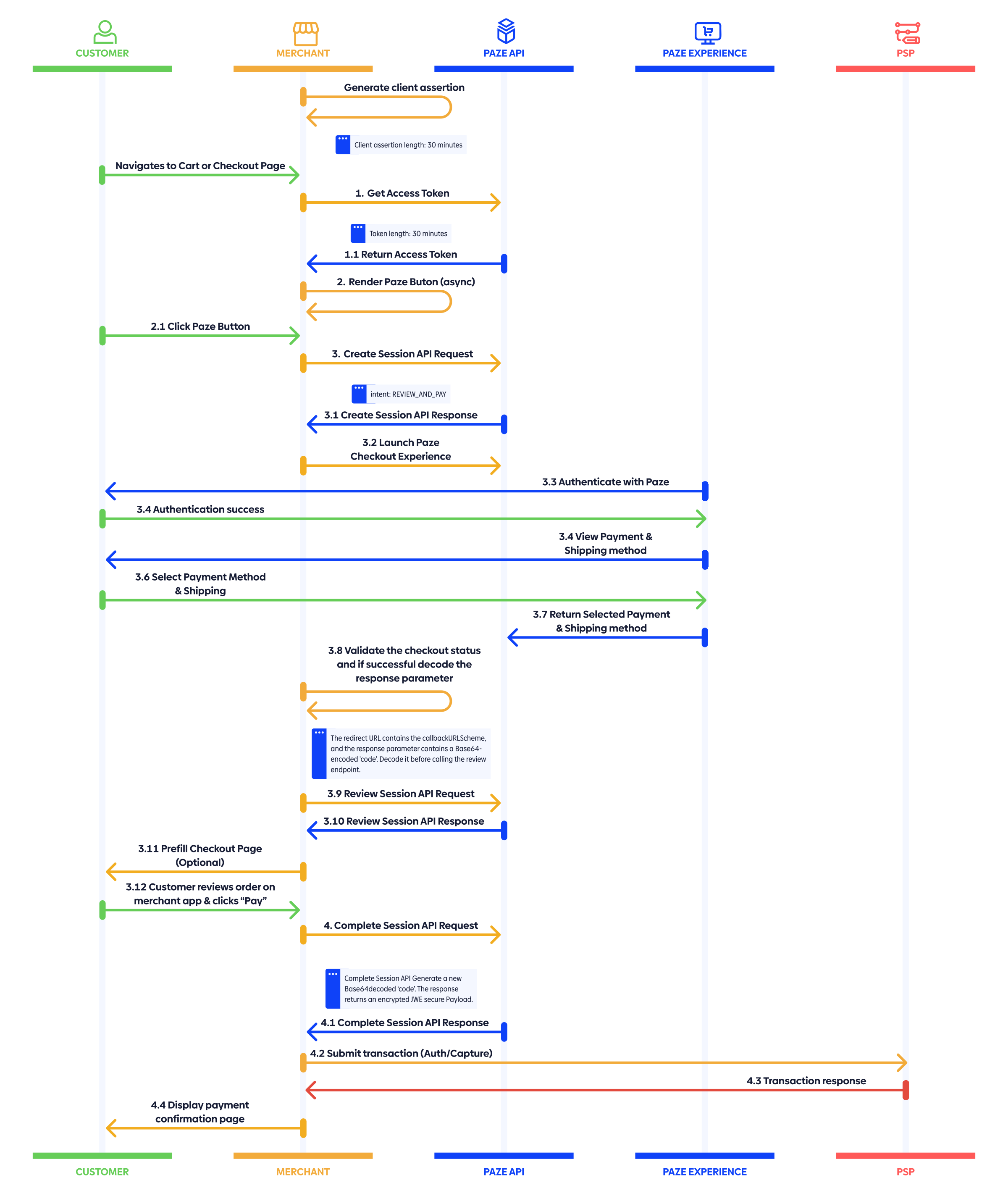
The following sequence diagram illustrates how the merchant site, Paze API, and Paze Experience interact during this process. It’s meant as a quick reference to understand the end-to-end flow before a deep dive into the sequence diagram and detailed integration steps.
Integration Steps
There are six basic steps to integrate the Button and Review and Pay flow from the Paze API with your application:
- Generate Client Assertion
- Get Access Token
- Render Button
- Create Checkout Session
- Review Checkout Session
- Complete Checkout Session
Each step includes what’s happening, why it matters, when to implement, and notes on best practices.
1. Generate Client Assertion
When authenticating with the private_key_jwt method, your application must generate a JWT client assertion signed with your registered private key using the RS256 algorithm. This JWT is then passed as the value of the client assertion parameter in your token request. The JWT header must include the algorithm (alg) set to RS256, the type (typ) set to JWT, and a key ID (kid) corresponding to your public key.
The JWT payload must include the following:
- iss: your client ID
- sub: your client ID (same as iss)
- aud: the token endpoint URL
- exp: the expiration time in UNIX
- iat: the issued-at timestamp
- jti: a unique identifier for the JWT
WHAT: Create an RS256-signed JWT client assertion with claims iss, sub, aud, exp, iat, nbf, jti and header kid.
WHY: You must generate a client assertion to retrieve your access token.
WHEN: Create the client assertion before making a call to the token URL.
BEST PRACTICES: Never transmit private keys over the network.
2. Get Access Token
After generating your client assertion, make a call to generate your access token. The access token lasts for 30 minutes.
Sample Request
curl --location 'https://auth.wallet.cat.earlywarning.io/token' \
  --header 'Content-Type: application/x-www-form-urlencoded' \
  --data-urlencode 'grant_type=client_credentials' \
  --data-urlencode 'client_assertion=<CLIENT_ASSERTION_FROM_STEP_1>' \
  --data-urlencode 'client_assertion_type=urn:ietf:params:oauth:client-assertion-type:jwt-bearer'
Sample Response
{
  "access_token": "eyJraWQiOi...",
  "expires_in": "1800",
  "token_type": "bearer"
}
WHAT: Make a call to the token generation endpoint by passing the valid client assertion RS256-signed JWT obtained in the previous step.
WHY: You must generate an access token to access the Paze services. The access token lasts 30 minutes, and in the event of expiration, generate a new token. Paze does not support refresh tokens.
WHEN: Obtain the access token after generating the client assertion.
BEST PRACTICE: Ensure the aud claim matches the exact token URL. If the token is expired, re-generate the assertion and re-request the token, RS256-signed JWT
3. Render button: Display the Paze Button adhering to brand guidelines
Merchants render the Paze button according to the Paze Checkout User Interface Standards guide. The required .SVG logo files and usage instructions are provided to merchants during onboarding. Use one of the approved colorways such as the preferred Paze Blue (#F042F8) or variants approved for monochromatic sites. Maintain clear space at least one-third of the logo’s height and display the button as a rectangular or pill-shaped button as outlined in the standards guide. It should load immediately with other wallet options, not hidden in menus, and match their visual prominence.
WHAT: Render the branded Paze button on your checkout pages. This button allows customers to initiate the Paze checkout experience by clicking. Make sure to adhere to the Paze Button Guide to ensure compliance. There are a few approved variants so you can align with your site’s design while staying compliant with brand guidelines.
WHY: The button offers a customer-driven entry point into the Paze experience.
WHEN: Render the button whenever you surface payment options in your checkout experiences.
BEST PRACTICE: Follow brand guidelines in the Paze Button Guide. Reference the button overview and checkout user interface standards.
Note: For approved variants, consult the Paze User Interface standards.
4. Create Checkout Session
The checkout session create endpoint (v1/checkout/sessions/create) enables merchants to create a checkout session within a native mobile experience. This endpoint returns a URL that merchants can use to launch the Paze experience in a Secured WebView. Call this endpoint when a customer clicks the Paze button.
Sample Request
curl --location 'https://mobile-east.wallet.cat.earlywarning.io/v1/checkout/sessions/create' \
  --header 'Content-Type: application/json' \
  --header 'Authorization: Bearer eyJraWQiOi...' \
  --data-raw '{
    "clientContext": "create-mobile-session-req",
    "data": {
      "client": {
        "id": "YOUR_CLIENT_ID",
        "name": "YOUR_MERCHANT_DISPLAY_NAME",
        "profileId": "YOUR_PROFILE_ID"
      },
      "sessionId": "14eb0b01-a6c0-40a0-8816-aecfa99d5954",
      "phoneNumber": "[email protected]",
      "emailAddress": "CUSTOMER_MOBILE_NUMBER",
      "callbackURLScheme": "pazecheckout",
      "actionCode": "START_FLOW",
      "intent": "REVIEW_AND_PAY",
      "transactionValue": {
        "transactionCurrency": "USD",
        "transactionAmount": "10"
      },
      "shippingPreference": "ALL",
      "billingPreference": "ALL"
    }
  }'
Sample Response
{
  "data": {
    "pazeCheckoutUrl": "https://checkout.wallet.cat.earlywarning.io/web/mobile/checkout?param=eyJwIjoiZXlKbGJtTWlPaUpCTWpVMlIwTk5JaXdpWlhod0lqb3hOelkwT0RFNU9Ua3pMQ0pwWVhRaU9qRTNOalE0TVRrMU1UTXNJbUZzWnlJNklsSlRRUzFQUVVWUUxUSTFOaUlzSW10cFpDSTZJakJFTmtOQk5UazJJbjAuY1B4M3hHUzZDajhKaVRJTmlQMXJMeHJZTDk3NG91Y0Rrelp4MkltVjFmaHB4cThSTjJHZHdSZEdmb2xNcjRxSmNXOW5qRk5DeVk0YjRZdTE4MmVjWHV3YmlsZXhLekdiS2tFTUx0Q1l6NThLYTk0TGRRUXVPWnZaeFdNSXlFdlNKTWhLOVlPaVBkS0M0dXQ3UkY3TjB4UFdzOElOV3lSQ3hSd3M5YktkSkNhQlRvNzJvY1h2clpaVjhmY1VfNDJZMkkyZTFhaTdHUWQteDh5WTRiSzlUckl6TzgxTkNFRXhLeG05UWFhOFVLbUFoNURQa1J0a2pBMHNuLS1Db1dqZEhtQlpGR1R5S3BTMUl1VzNjVDFLVFdCM3VaX054UTlaSGo1SWliRnVtSC1pNnhlZGZrSktrUkxjLWdURFRpdGl4VkNiLThNdDJmeHVPLTNMeC1GWEdBLjhWVUNDNVdxYnlIMzR6dDIuNnViRUxNZ3NWcEdrVTA2OFhUYWhvc05YelFkZG5IZjhpbVJTZTU5aHpSZXo5b1h3R214MVQ5cWtGb3lzUVJSVUZ6ZWZMbjdnTnRadWptVER1MndJWDVqTWVlZktiaDktVHdCQW5pc2lOamZkTENCTkFSWkR0aG1QTWRENE1lQ1NtdHRjSTNwUWU1bld1X3QwMUs0d1BINE84RkI0VzB4a0FWZ3d2MVZjakI3MlNXaWlnendPY1BSNFkxMUQ2bTY4akNaUkFsYi1yU0NfaDBNOTN3Y2Y1NWpaeXdzdWlKZ3Z5Tmp6am4tMFhDQktYdElKRm9DMjZXa2pMR0ptZTczQmN3UndBSkJlZzBSVHcwXzVLa2xodnRWMHctOGpYa09SSktfd3k5NXNtQ01FYmRBVnNUZHM4X1FpS0h4R3ZlWmY0Z0ZBc2ZIRXR5WEtmVWFFOVNRQmJid01hQVl1cDdVUGlUaDRuMXM4azJ5S2lSYzB6ZkNtUm84azlUaVF4QVhabWFpOVdQNnZ6OVdwUkdYSm05ang4NHU2cmpuTnpHSGU5a1RnMVQ3ODVwenVEQjE1R1RZWXZWQTRJRXNSWjl5TkRJQmoteHZFRzZ3MzJESFdwWUx3eXdvV3dfRGhQLTZLN1MtcDRlZ19TM1gwNThkd29CZkhlLVdnc1kybFVpbzQ1TzhNX183eHZDMG44ZmNvRFVQNE1VaHpJT24tLlY2ZEdKM3hPdzQyb3IwZjF2LTRwRkEifQ"
  },
  "clientContext": "create-mobile-session-req",
  "ewSID": "3cc18f10-ceb7-4162-bd2e-e2334bccef31",
  "timestampISO8601": "2025-12-04T03:38:33Z"
}
WHAT: Make a call to checkout sessions create to start your checkout session when the customer clicks the Paze button.
WHY: You must generate the Paze checkout URL to launch the Paze checkout experience.
WHEN: Embed the Paze checkout URL with a Paze button to initiate the checkout experience when the customer clicks on Paze.
BEST PRACTICE: Paze recommends opening the URL in ASWebAuthenticationSession for iOS and Android Custom Tabs to ensure that returning Paze users have a seamless login experience.
REDIRECT URL: After the customer completes their checkout, a redirect URL is returned pazecheckout://status=success#response=ZXlKaGRXUWlPbTUxYkd3c0ltdHBaQ0k2SWpVd016UkJRamt6TkRkRk9UUTBRa1V3UVRaRlFrVkNRall3UkVVMk5UVkZORUpDUVVaRE5qUWlMQ0pwYzNN
5. Review Session
The checkout sessions review endpoint (v1/checkout/sessions/review) allows merchants to retrieve the data related to the card selected by the customer in the Paze checkout experience. Merchants can use this endpoint when referring customers to a confirmation page before completing the transaction.
Sample Request
curl --location 'https://mobile.wallet.cat.earlywarning.io/v1/checkout/sessions/review' \
  --header 'Content-Type: application/json' \
  --header 'Authorization: Bearer <ACCESS_TOKEN_>' \
  --data '{
    "clientContext": "string",
    "data": {
      "sessionId": "<YOUR_SESSION_ID>",
      "code": "<DECODED_CODE_FROM_CALLBACK>"
    }
  }'
Sample Response
{
  "data": {
    "consumer": {
      "mobileNumber": {
        "countryCode": "1",
        "phoneNumber": "3133530687"
      },
      "countryCode": "US",
      "emailAddress": "[email protected]",
      "firstName": "Paul",
      "fullName": "Paul Abernathy",
      "languageCode": "EN",
      "lastName": "Abernathy"
    },
    "shippingAddress": {
      "deliveryContactDetails": {
        "contactPhoneNumber": {
          "countryCode": "1",
          "phoneNumber": "3133530687"
        },
        "contactFullName": "Paul Abernathy"
      },
      "city": "Cedar Park",
      "countryCode": "US",
      "line1": "9339 Chelsey Plain",
      "state": "IL",
      "zip": "67060"
    },
    "maskedCard": {
      "digitalCardData": {
        "artHeight": 50,
        "artUri": "https://sandbox.assets.vims.visa.com/vims/cardart/8e95514fc6604626b0665c2059426d14_imageC",
        "artWidth": 80
      },
      "billingAddress": {
        "city": "Cedar Park",
        "countryCode": "US",
        "line1": "9339 Chelsey Plain",
        "state": "IL",
        "zip": "67060"
      },
      "panExpirationMonth": "05",
      "panExpirationYear": "2032",
      "panLastFour": "9416",
      "paymentAccountReference": "V0010013023090263431713174343",
      "paymentCardBrand": "VISA",
      "paymentCardDescriptor": "Your Bank",
      "paymentCardNetwork": "VISA",
      "paymentCardType": "CREDIT"
    },
    "links": {
      "CHANGE_CARD": "https://checkout.wallet.cat.earlywarning.io/web/mobile/checkout?param=eyJwIjoiZXlKbGJtTWlPaUpCTWpVMlIwTk5JaXdpWlhod0lqb3hOelkwT0RJeE1UY3dMQ0pwWVhRaU9qRTNOalE0TWpBMk9UQXNJbUZzWnlJNklsSlRRUzFQUVVWUUxUSTFOaUlzSW10cFpDSTZJakJFTmtOQk5UazJJbjAuQTM5TWI3OHhxRHlGYU9KcVpvMHFmYktneHZWZHpGOVluRm91cF9FdUdFVXQxVDg0Q01qV1ZqT1I3bmhkVk9QLU1XRmdDa3dPa3lmb2x2aHg5a1ZfaWpWRW1pZkppNDRGeVFLS0xEVVFORURkZnp3MFROLXMyS0w4OXRMWUNHVmhWbnJsT2toNmZMa0lZX2RHdlVXTTByZnA2aEVPWUpGRFVoQmVGRTgzZDZCT3hnNE8tSVVXUVhVQWR6VExFRXhPY244QTcyZFZmRzZmQVdrVTAwQjQyYzVNeVVwM1lzSWdSLUl2YjE4a0ZNVUJOcjJ5dFE2M2ttUUZSd2JiSWdiYXN0bnBuRFpTdnFDMWdXQlZEWlNoOWg5LUtpTlpUNHQ0U1VZbFMzMWw0cmpjaVZmVTRLSzZaQWRaamtTRXcyUV9NM1d4enhINFJTaVVpWVJSV1JOYUpnLnlJYS00MnZwSTBLSTROUi0uSElHSDFnMlJXYkJ4QzhVcThSR2ZWV044VUpRMHZMMU5oMUdqdzR6bDFmdzktQ0k0OFpMd3BsaW1NSmI4UENqOUJVcFl4YkhhbkNKZjc3SmJ0dm1jSDhLU0UzdFZYNzZKOEZkZEZkak9ZRDVqX2lIWmFjbkwwUmVkbGhPZDFLNVg0Nl9pVHBFblpoNEVvVEx0UDUxbldjZDczY25VMUd1LUJBSEtVdC1wVjJsdER3eUh2b0ZsUjUwN0VIc2Z0XzRKLWFsaTBkQ2FrTWFXOXo3VmpDclg4c1pQX2xiWi1nY2pXWVhkelY1U2t4TExWTUtlcXpLTHp0d2RNbHV6dVF6eTlkTGxSZzc5RktzX3d6a25qYjhPbXQ5akkwUzRYYkZkMVkwVWV4Y1Q5RGJtcmg1dTdjOV84akJydkVwVHV0QkpIODEwTFpqeHFWWGRkY1U2aURqZUhkVlFXUHh1SUN2enZWMEV1QlFGQ0pweEZsdk9xdWdocXhLQVN2Wl9uZWVBU3JMQXpXdTZVLTdrVHdFWWZPVVliNWdNZWw0eHRfV3RaeEpFYUp0MW85dnpwN1VxQWVVOUZ5N3lzSDhrT0YyU3Z2aHlnakk2NmtoWDRsT3pBdDVlRUNzZUF2dEJrcWpWTnI1XzczRFFNamJNdVM5dUtYZUtIRlcyM3A5M004bmxmbjJ0WFRXMHdZTTBGYThfaXBJa2U4b2gyQno0YW9fMEh2UGl6TXlrVllxQjZGTVhsdGJNNjFOSlI5LWZNUFBiSjZyYVVIS25sYkhmM2lqSWQtakFMWGw4blFVT0xQd1BQTVhaM0FVYW52YmhyTHd2WnFralY1X1lkQ0R0UkJ5WGtRR0p2UE1qODhYRTM0ZjZIRzdrWTBRVG01OHR2WFB0UV9HMDhRZ0ktSjY2NTdkazZrcno3b1VzR1RFdG9lVjZtUDZGTjFKWmMtMTY3M2YxSzlSdExjdU9Nb1VFelJ4NXR0UWJvdnRCbkJVOFdMOHNUUU1OWTZ6em5EbzFRZ3kyaWNSYnJxazcwckMzSEtXcF9uSm1RUDZkRVk4SzRPckZyOXNmNmZTbVZNbkYxNVpGcXRGYnlXZUZsNXpuNmxEMktZLWZfSWsuQm5Ebl9hd01vcl9WQWU4RHJxcWR4dyIsImFjIjoiQ0hBTkdFX0NBUkQifQ",
      "CHANGE_SHIPPING_ADDRESS": "https://checkout.wallet.cat.earlywarning.io/web/mobile/checkout?param=eyJwIjoiZXlKbGJtTWlPaUpCTWpVMlIwTk5JaXdpWlhod0lqb3hOelkwT0RJeE1UY3dMQ0pwWVhRaU9qRTNOalE0TWpBMk9UQXNJbUZzWnlJNklsSlRRUzFQUVVWUUxUSTFOaUlzSW10cFpDSTZJakJFTmtOQk5UazJJbjAuQTM5TWI3OHhxRHlGYU9KcVpvMHFmYktneHZWZHpGOVluRm91cF9FdUdFVXQxVDg0Q01qV1ZqT1I3bmhkVk9QLU1XRmdDa3dPa3lmb2x2aHg5a1ZfaWpWRW1pZkppNDRGeVFLS0xEVVFORURkZnp3MFROLXMyS0w4OXRMWUNHVmhWbnJsT2toNmZMa0lZX2RHdlVXTTByZnA2aEVPWUpGRFVoQmVGRTgzZDZCT3hnNE8tSVVXUVhVQWR6VExFRXhPY244QTcyZFZmRzZmQVdrVTAwQjQyYzVNeVVwM1lzSWdSLUl2YjE4a0ZNVUJOcjJ5dFE2M2ttUUZSd2JiSWdiYXN0bnBuRFpTdnFDMWdXQlZEWlNoOWg5LUtpTlpUNHQ0U1VZbFMzMWw0cmpjaVZmVTRLSzZaQWRaamtTRXcyUV9NM1d4enhINFJTaVVpWVJSV1JOYUpnLnlJYS00MnZwSTBLSTROUi0uSElHSDFnMlJXYkJ4QzhVcThSR2ZWV044VUpRMHZMMU5oMUdqdzR6bDFmdzktQ0k0OFpMd3BsaW1NSmI4UENqOUJVcFl4YkhhbkNKZjc3SmJ0dm1jSDhLU0UzdFZYNzZKOEZkZEZkak9ZRDVqX2lIWmFjbkwwUmVkbGhPZDFLNVg0Nl9pVHBFblpoNEVvVEx0UDUxbldjZDczY25VMUd1LUJBSEtVdC1wVjJsdER3eUh2b0ZsUjUwN0VIc2Z0XzRKLWFsaTBkQ2FrTWFXOXo3VmpDclg4c1pQX2xiWi1nY2pXWVhkelY1U2t4TExWTUtlcXpLTHp0d2RNbHV6dVF6eTlkTGxSZzc5RktzX3d6a25qYjhPbXQ5akkwUzRYYkZkMVkwVWV4Y1Q5RGJtcmg1dTdjOV84akJydkVwVHV0QkpIODEwTFpqeHFWWGRkY1U2aURqZUhkVlFXUHh1SUN2enZWMEV1QlFGQ0pweEZsdk9xdWdocXhLQVN2Wl9uZWVBU3JMQXpXdTZVLTdrVHdFWWZPVVliNWdNZWw0eHRfV3RaeEpFYUp0MW85dnpwN1VxQWVVOUZ5N3lzSDhrT0YyU3Z2aHlnakk2NmtoWDRsT3pBdDVlRUNzZUF2dEJrcWpWTnI1XzczRFFNamJNdVM5dUtYZUtIRlcyM3A5M004bmxmbjJ0WFRXMHdZTTBGYThfaXBJa2U4b2gyQno0YW9fMEh2UGl6TXlrVllxQjZGTVhsdGJNNjFOSlI5LWZNUFBiSjZyYVVIS25sYkhmM2lqSWQtakFMWGw4blFVT0xQd1BQTVhaM0FVYW52YmhyTHd2WnFralY1X1lkQ0R0UkJ5WGtRR0p2UE1qODhYRTM0ZjZIRzdrWTBRVG01OHR2WFB0UV9HMDhRZ0ktSjY2NTdkazZrcno3b1VzR1RFdG9lVjZtUDZGTjFKWmMtMTY3M2YxSzlSdExjdU9Nb1VFelJ4NXR0UWJvdnRCbkJVOFdMOHNUUU1OWTZ6em5EbzFRZ3kyaWNSYnJxazcwckMzSEtXcF9uSm1RUDZkRVk4SzRPckZyOXNmNmZTbVZNbkYxNVpGcXRGYnlXZUZsNXpuNmxEMktZLWZfSWsuQm5Ebl9hd01vcl9WQWU4RHJxcWR4dyIsImFjIjoiQ0hBTkdFX1NISVBQSU5HX0FERFJFU1MifQ"
    },
    "code": "eyJhdWQiO..."
  },
  "clientContext": "string",
  "ewSID": "9d1473ff-8cd0-48d5-9e84-a80861e16c5a",
  "timestampISO8601": "2025-12-04T03:58:10Z"
}
WHAT: Make a call to retrieve information for the merchants review page.
WHY: This call is required in the event merchants want to refer the customer back to review the transaction.
WHEN: Call this endpoint after the customer has returned to the merchant app and the redirect URL response parameter has been received. Grab the
codefrom the URL and make the review call.NOTE: The redirect URL contains the
callbackURLSchemeand the response parameter contains a Base64-encodedcode. Decode it before calling the review endpoint. Thecodecan only be used within 8 minutes of receiving the checkout response. This field cannot be used to redirect to a back end server directly.
6. Call Checkout Complete
The checkout session complete endpoint (v1/checkout/sessions/complete) returns a JSON Web Signature completeResponse which can be verified with Paze public key for authenticity, then decoded with a base64 decoder. This contains the sessionId which matches the other calls in this session. The securedPayload is a JSON Web Encryption (JWE) that is encrypted and must be decrypted with the merchant's private key associated with the certificate provided by the merchant during onboarding. This object contains the data needed for your payment services provider to process the transaction. The dynamic data cryptogram is sent by the merchant to the payment processor and is valid for 24 hours.
Sample Request
curl --location 'https://mobile-east.wallet.cat.earlywarning.io/v1/checkout/sessions/complete' \
  --header 'Content-Type: application/json' \
  --header 'Authorization: Bearer eyJraWQi...' \
  --data '{
    "clientContext": "client-context-from-create-call",
    "data": {
      "transactionType": "PURCHASE",
      "sessionId": "YOUR_SESSION_ID",
      "code": "eyJhdWQiOm...",
      "transactionOptions": {
        "merchantCategoryCode": "2121",
        "billingPreference": "ALL",
        "payloadTypeIndicator": "PAYMENT"
      },
      "transactionValue": {
        "transactionCurrency": "USD",
        "transactionAmount": "10"
      }
    }
  }'
Sample Response
{
  "data": {
    "completeResponse": "eyJhdWQiOm...",
    "payloadId": "5C8DE7AFC400cb9b1c61-91d2-ab9a-1ebc-108435823a01",
    "securePayload": "eyJraWQiOiJwY..."
  },
  "clientContext": "client-context-from-create-call",
  "ewSID": "1cde1f8c-572d-4fc5-b329-e48e084a2360",
  "timestampISO8601": "2025-12-04T04:03:45Z"
}
WHAT: Make a call to the complete endpoint to close the merchant and customer sessions.
WHY: This endpoint closes the Merchant and customer sessions (where applicable) and provides a payment identifier and, if requested, the card details required to process the transaction.
WHEN: Make a call to this endpoint when you, the merchant, is ready to receive the
securePayloadorcompleteResponsecompleting the flow and submitting for payment processing. The dynamic data cryptogram is sent to the payment processor and is valid for 24 hours. Please note that the completeResponse is returned by the API as well as our JS SDKNOTE: Reuse the same Base64-decoded
codefrom the previous step.
Decoded completeResponse
After receiving the completeResponse JWS, first decode it to extract the JSON payload containing payloadId, sessionId, and optionally securedPayload.
{
  "payloadId": "5C8DE7AFC400c", // Required: String (≤ 50 chars)
  "sessionId": "YOUR_SESSION_ID", // Optional: String (echoed if provided)
  "securedPayload": "eyJhbGciOi..." // Conditional: String (JWE<JWS<Payload>>)
}
Decrypted securePayload
Decrypt the securePayload using the merchant's private key. The decrypted payload contains sensitive information necessary for you to process the transaction.
{
  "clientId": "merchant-12345", // Required: String
  "profileId": "profile-6789", // Required: String
  "eci": "05", // Optional: String (ECI code)
  "consumer": {
    // Required: Object (Consumer)
    "fullName": "paul Doe", // Required: String
    "emailAddress": "[email protected]" // Required: String (RFC 5322)
  },
  "billingAddress": {
    // Conditional: Object (Address)
    "line1": "123 Main St", // Required: String
    "city": "Phoenix", // Required: String
    "state": "AZ", // Required: String
    "zip": "85001", // Required: String
    "countryCode": "US" // Required: String (ISO 3166-1 alpha-2)
  },
  "token": {
    // Required: Object (Token)
    "paymentToken": "[Removed]", // Required: String (network token)
    "tokenExpirationMonth": "12", // Required: String (MM)
    "tokenExpirationYear": "2028", // Required: String (YYYY)
    "paymentAccountReference": "PAR1234567890" // Required: String (PAR)
  },
  "paymentCardNetwork": "VISA", // Required: Enum (VISA | MASTERCARD | DISCOVER)
  "dynamicData": [
    // Required: Array<DynamicData>
    {
      "dynamicDataType": "PURCHASE", // Required: Enum (PURCHASE | CARD_ON_FILE)
      "dynamicData": "CiAgICAg...", // Required: String (cryptogram) This is sent to the payment processor as is and is not decrypted by the merchant. The cryptogram is valid for 24 hours.
      "dynamicDataExpiration": "2025-12-31T23:59:59Z" // Optional: String (ISO 8601)
    }
  ]
}
For more information please visit the API Reference
Updated 6 days ago